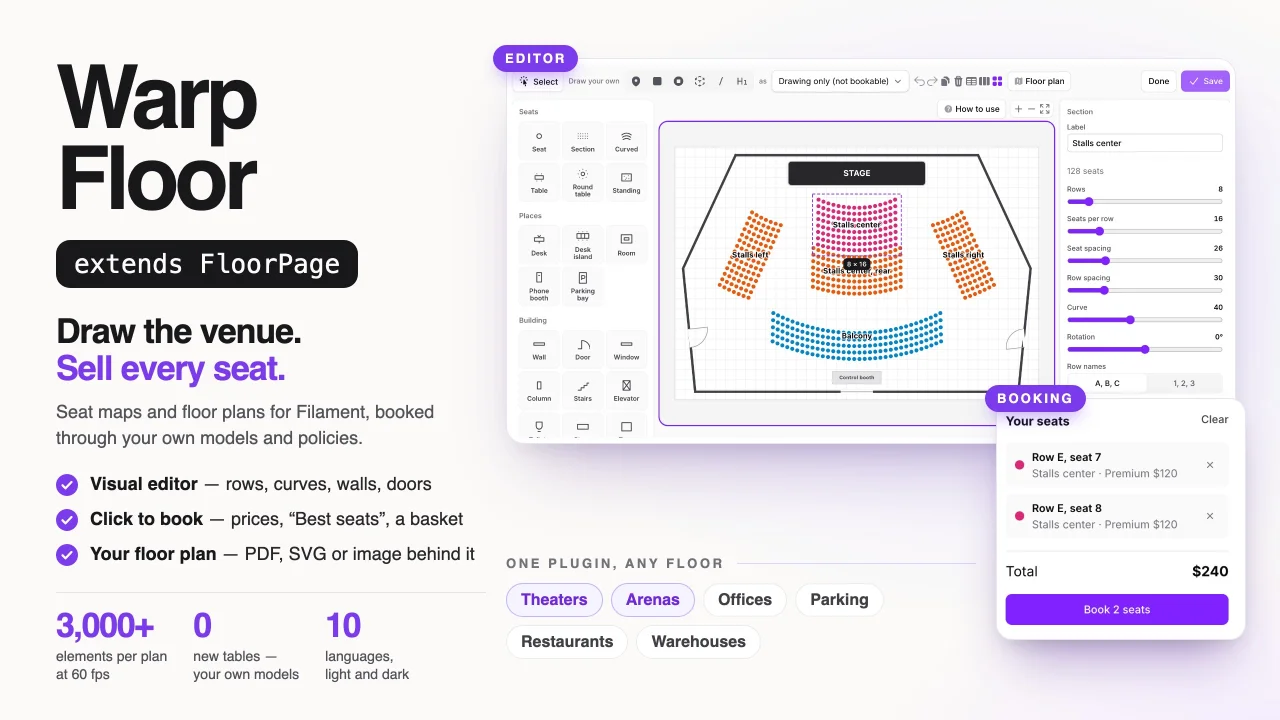
Warp Floor by Yuichi Okada
CommunityCanvas-rendered floor plans for desk, room, parking and table booking, with an in-browser editor and PDF floor plans, all read from your own Eloquent models and booking tables.
filament/
namespace. Review the source and install at your own risk. Found
malware or an unresolved security issue the author won't
address?
Report it
.
 Author:
Yuichi Okada
Author:
Yuichi Okada
Documentation
- Contents
- Why
- Features
- Requirements
- Installation
- Usage
- Venues
- Workplaces
- Menus and tooltips
- Editor
- Templates
- Venues and floors
- Usage
- Backgrounds and PDF floor plans
- Tenancy
- Help for your users
- Keyboard
- Limitations
- Troubleshooting
- Changelog
- Support
- License
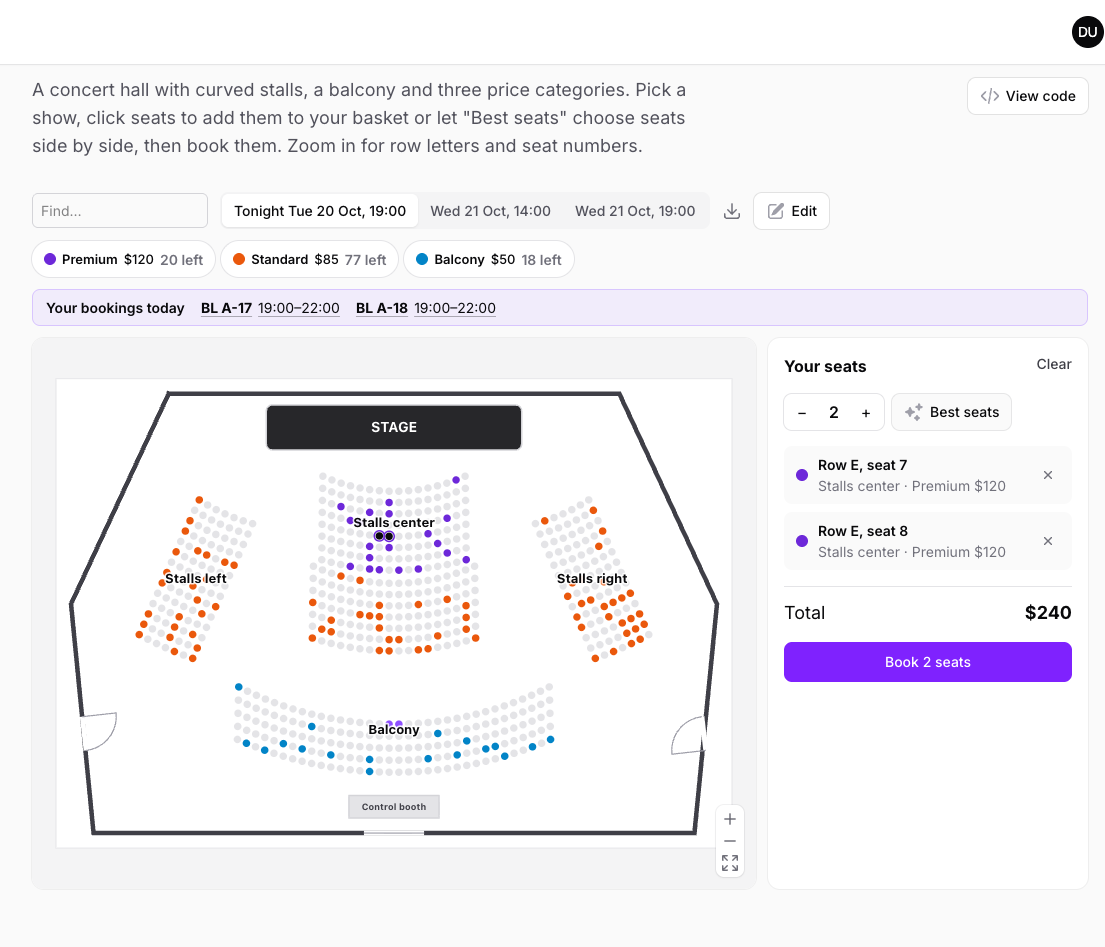
Seat maps and floor plans for Filament. Sell theater and arena seats by price category, let people book desks and meeting rooms, and see who sits where. The place is drawn on a <canvas> and edited in the browser; the records and the bookings are your own Eloquent models.

Pick the best seats for tonight's show, book a desk next to a colleague, shape a curved section with a few sliders, create a new venue from a template and read three months of usage at demo.warpui.com/floor. No sign-up needed; the data is reset every hour.
Seat map services and desk booking tools come with their own database and their own app. Warp Floor works the other way round: you point it at the models you already have (Desk, Room, Ticket…) and at the table your bookings are in, and it works out what is free for any day, time range or show.
use Qalainau\FilamentWarpFloor\BookingSource;
use Qalainau\FilamentWarpFloor\ElementType;
use Qalainau\FilamentWarpFloor\Enums\Kind;
use Qalainau\FilamentWarpFloor\Floor;
use Qalainau\FilamentWarpFloor\Pages\FloorPage;
use Qalainau\FilamentWarpFloor\Session;

class Theater extends FloorPage
{
    public function floor(Floor $floor): Floor
    {
        return $floor
            ->editable()
            ->sessions([
                Session::make('tonight')->label('Tonight, 19:00')->between('2026-11-03 19:00', '2026-11-03 22:00'),
            ])
            ->elementTypes([
                ElementType::make('seat')
                    ->kind(Kind::Seat)
                    ->bookings(
                        BookingSource::make(Ticket::class)
                            ->element('floor_element_id')
                            ->schema([TextInput::make('holder')->required()]),
                    ),
            ]);
    }
}
#Contents
- Why · Features · Requirements · Installation
- Usage: Where to put a floor · Plans · Element types and kinds · Bookings and states · Booking form
- Venues: Seat maps · Shows · Price categories · The basket · Standing areas · The box office
- Workplaces: The side panel · Who booked it · Check-in · Favorites, features and search · Repeat bookings · Moving and cancelling bookings
- Menus and tooltips · Editor · Templates · Venues and floors · Usage
- Backgrounds and PDF floor plans · Tenancy · Help for your users · Keyboard · Limitations · Troubleshooting
#Why
- Your data stays yours. Places are your models and bookings are your tables. Warp Floor adds tables for the drawing (plans, the elements on them, and favorites) and nothing else.
- Venues and workplaces with one plugin. Curved sections, row letters, seat numbers, price categories and a basket for theaters and arenas; desks with chairs and the faces of who booked them, rooms with their day and check-in for offices.
- Fast with large plans. Only what is on screen is drawn, seats become simple dots when zoomed out, and a spatial index finds what is under the pointer. Thousands of seats pan and zoom smoothly.
- The plan is part of the app. Users with permission create venues from templates, shape sections with sliders, draw walls with doors and windows, and link places to records by dragging them from a list.
#Features
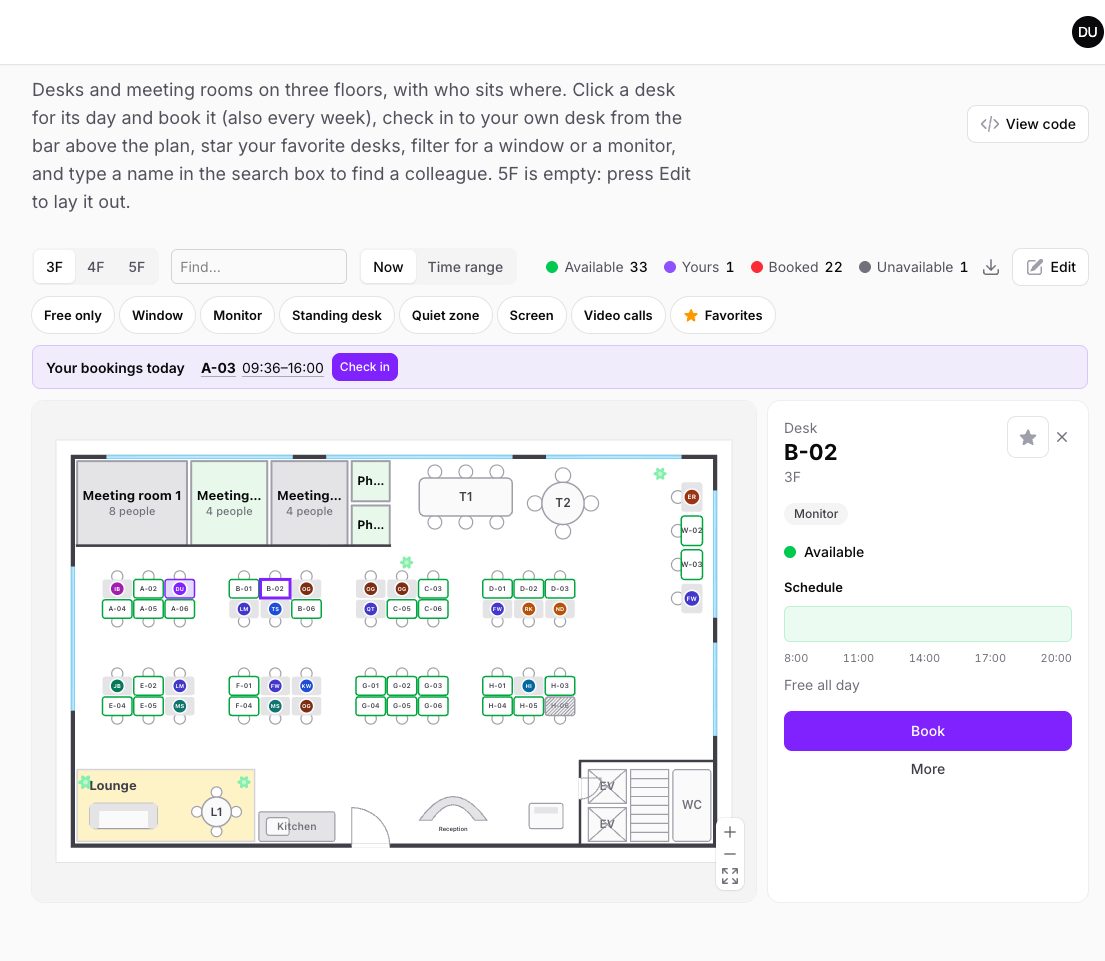
- Kinds of places: seats, desks, rooms, tables with chairs, standing areas, parking bays, sections, walls, doors, windows, furniture, text and shapes, each drawn the way it looks on a real plan.
- Seat maps: sections lay out their seats from rows, seats per row, spacing, curve and rotation; rows are lettered and seats numbered from the left, the right or the middle. Zoomed out you see the section names, zoomed in every seat number.
- Shows and price categories: pick a show instead of a time range; seats are colored by price category and gray when sold; filter by category and see how many are left.
- Basket and best seats: click seats into a basket, or let "Best seats" pick seats side by side near the front and the middle; book them all in one form.
- Workplaces: a side panel with the features, who booked a place and its schedule for the day; check-in with automatic release; favorites; repeat bookings; filters for features; search for colleagues by name.
- States for any time range: available, yours, partly booked, booked and unavailable, worked out from your bookings with one query per type. Add your own states with
stateUsing(). - Editor: "What to place" panel, sliders for sections, walls with their length, doors and windows that snap into walls, alignment guides, price categories painted onto sections, undo and redo, versioned saving.
- Templates and venues: office, theater, arena, restaurant, parking and blank templates; a page with every venue as a card and a "New venue" button.
- Usage: a heat map of the plan, busy days and hours, no-shows and a CSV download.
- Backgrounds: PNG, JPG, GIF, WebP, SVG, or a page of a PDF rendered in the browser.
- Filament inside: forms, actions, notifications, policies, tenancy, dark mode and translations (English, Japanese, German, French, Spanish, Italian, Brazilian Portuguese, Korean and Chinese, simplified and traditional). Keyboard, screen readers and touch are supported.
#Requirements
- PHP 8.3+
- Laravel 12 or 13
- Filament 5.x (Livewire 4)
- MySQL 8 / MariaDB 10.6+, PostgreSQL 14+ or SQLite
#Installation
Warp Floor is a commercial plugin. A license is required. After purchase you receive credentials for the private Composer repository.
Add the repository and authenticate:
composer config repositories.qalainau composer https://qalainau.privato.pub/composer
composer config --auth http-basic.qalainau.privato.pub "your-email" "your-license-key"
Install the package, run the migrations and publish Filament's assets:
composer require qalainau/filament-warp-floor
php artisan migrate
php artisan filament:assets
The migration creates warp_floor_plans, warp_floor_elements and warp_floor_favorites. Your tables are not changed. To edit the migration, publish it with php artisan vendor:publish --tag=filament-warp-floor-migrations. Publish it before you run php artisan migrate for the first time: Warp Floor then runs your copy instead of its own. If the tables already exist, change them with a migration of your own instead.
Run
php artisan filament:assetsagain after every update of the package.
#Usage
#Where to put a floor
Extend FloorPage for a full page or FloorWidget for a dashboard widget, and implement floor(). A widget can show a heading with protected static ?string $heading = 'Free desks'; and hide the side panel with ->sidePanel(false).
A widget can follow the dashboard's filters. Use Filament's InteractsWithPageFilters and read $this->pageFilters in floor(). When a filter changes, the floor reads its settings again and reloads the open plan (or the first plan, if the open one is filtered out):
use Filament\Widgets\Concerns\InteractsWithPageFilters;

class FreeDesks extends FloorWidget
{
    use InteractsWithPageFilters;

    public function floor(Floor $floor): Floor
    {
        return $floor->plans(FloorPlan::query()->where('group', $this->pageFilters['building'] ?? 'Head office'));
    }
}
The same happens whenever the component around the floor renders again with different settings (other plans, types or shows). A plan with unsaved changes in the editor is reloaded when the editor closes.
In any other Livewire component, implement HasFloor, HasSchemas and HasActions, use InteractsWithFloor, InteractsWithSchemas and InteractsWithActions, and render {{ $this->getWarpFloor() }}. The floor's properties and methods are prefixed with warpFloor.
#Plans
A plan is a drawing with elements on it, such as one floor of a building or one hall. Create plans from a template, on the venues page, in the editor, or in code:
use Qalainau\FilamentWarpFloor\Models\FloorPlan;

FloorPlan::create(['name' => '3F', 'group' => 'Head office', 'width' => 1600, 'height' => 1000]);
Plans with the same group belong to the same venue: a venue picker for the groups and tabs for the plans in a group. Choose which plans a floor shows with plans():
$floor
    ->plans(FloorPlan::query()->where('group', 'Head office'))
    ->initialPlan(fn (): ?int => auth()->user()->home_plan_id)
    ->urlKey('plan')       // the open plan is kept in ?plan=…; false to turn it off
    ->height(600);         // or a CSS length; by default the plan's own proportions, up to the height of the page
Opening a floor page with ?edit=1 starts the editor right away (the venues page links there).
#Element types and kinds
An element type says which model can be placed and how it is named. Its kind says what it is, and so how it is drawn and which settings the editor shows. Elements without a type are decoration (walls, doors, furniture, text).
use Qalainau\FilamentWarpFloor\Enums\Kind;

ElementType::make('room')
    ->label('Meeting room')
    ->kind(Kind::Room)
    ->model(Room::class)
    ->color('info')                               // a Filament color or any CSS color, used when there is no state
    ->titleAttribute('name')                      // or fn (Room $room): string => …
    ->searchable(['name', 'code'])                // columns for the search box and the editor's list
    ->modifyRecordsQueryUsing(fn (Builder $query): Builder => $query->where('active', true));
| Kind | Drawn as | Settings in the editor |
|---|---|---|
Seat |
A dot, with its number when zoomed in | Number, price category |
Section |
The seats it lays out (see seat maps) | Rows, seats, spacing, curve, rotation, row names, numbering |
Desk |
A desk with its chair, and the booker's initials | Number, features |
Room |
A glass room with its name and capacity | Capacity, features |
Table |
A table with chairs around it | Chairs, price category |
Area |
A dashed area with its name and capacity | Capacity, price category |
Parking |
A bay, with a bolt when it has an EV charger | Number, features |
Wall, Door, Window |
Thick walls, doors that open, glass | Thickness, which way a door opens |
Furniture, Text, Shape |
Plants, sofas, stairs…, labels, stages and zones | What the furniture is |
When a type has no kind, it follows its shape (->shape(Shape::Rect) is a room, a point is a seat). Point sizes are set with ->size(14).
modifyRecordsQueryUsing() limits which records can be listed, linked and loaded, for example to active ones. In a panel with tenancy, the records are already limited to the current team.
#Bookings and states
bookings() tells Warp Floor where the bookings of a type are. The booking points at the place in one of three ways:
BookingSource::make(ParkingBooking::class)->resource('parking_spot_id');   // a foreign key to the place's model
BookingSource::make(Reservation::class)->morph('bookable');               // a morph relation to the place's model
BookingSource::make(Ticket::class)->element('floor_element_id');          // the element on the plan (places without a model, like theater seats)

BookingSource::make(Reservation::class)
    ->morph('bookable')
    ->start('starts_at')                         // the default
    ->end('ends_at')                             // the default
    ->modifyQueryUsing(fn (Builder $query): Builder => $query->where('status', '!=', 'cancelled'))
    ->title(fn (Reservation $reservation): string => $reservation->title);   // shown in tooltips and the day schedule
For the day, time range or show on screen, each place is available (no booking), yours (a booking of the signed-in user, see owner()), partly booked (bookings cover part of the range), booked (bookings cover all of it) or unavailable (unavailableWhen() is true). A booking that ends when the range starts does not count. Pass several sources to read bookings from more than one table.
Change the states with stateUsing(), which receives the record, its bookings in the range and the range. Return a state name, or null for the default:
use Illuminate\Database\Eloquent\Collection;
use Qalainau\FilamentWarpFloor\State;
use Qalainau\FilamentWarpFloor\Window;

$floor
    ->states([
        State::make('cleaning')->label('Being cleaned')->color('warning'),
        State::make(State::Booked)->label('Taken'),            // relabel a default state
    ])
    ->elementTypes([
        ElementType::make('desk')
            ->model(Desk::class)
            ->bookings($reservations)
            ->stateUsing(fn (Desk $record, Collection $bookings, Window $window): ?string => $record->needs_cleaning ? 'cleaning' : null),
    ]);
stateUsing() also works without bookings, for example to color warehouse shelves by stock level.
Above the plan, people pick the day: a strip of the next seven days (today first, ◀ ▶ for other weeks) and a calendar for days further ahead. The plan then shows each place for that whole day — free, partly booked or booked within business hours — which is what someone booking a desk or a parking bay wants to know. It appears when a type has bookings and there are no shows:
$floor
    ->timezone('Europe/Berlin')            // defaults to Filament's display time zone
    ->businessHours('08:00', '19:00')      // the day shown on the plan, and the hours measured on the usage page
    ->timePicker(false)                    // hide it (the plan then shows right now)
    ->poll('30s');                         // re-read the states while the page is visible
When the time of day matters — a restaurant where a table is free at 18:00 but not at 19:30 — use hourly(). People then choose between Now (for walk-ins) and Choose a time: a date, a start and an end, offered within business hours. Choosing a time starts at the next half hour for the length you give, and moving the start keeps the length:
$floor
    ->hourly(length: 120)                  // a table is booked for two hours
    ->businessHours('11:00', '23:00');
The chosen day is kept in the URL (?date=2026-11-03), so a reload or a shared link shows the same day.
Times in the picker are wall-clock times in that time zone, also on the days the clocks change: 09:00–18:00 on the last Sunday of March in Berlin is 09:00–18:00 local time. "Today" follows the time zone too, so a page left open overnight moves on to the new day.
While the page is visible, polling also notices when someone else saved the plan in the editor and reloads it, keeping the basket, the filters and the side panel. When someone deleted the open plan, the floor opens another one.
#Booking form
When a source has a schema(), booking a place opens a Filament create action for the booking model. The place and the time range are filled in; when the form has fields for the start and end columns, they are filled too and the user can change them.
BookingSource::make(Reservation::class)
    ->morph('bookable')
    ->schema([
        TextInput::make('title')->required(),
        DateTimePicker::make('starts_at')->seconds(false)->required(),
        DateTimePicker::make('ends_at')->seconds(false)->after('starts_at')->required(),
    ])
    ->allowOverlap();       // let several bookings share a place (by default, overlaps are refused)
Before saving, the booking is checked: a valid time, unavailableWhen(), no overlapping booking of the same place, and enough room in a standing area. The booking model's policy (create) decides who can book, when there is one. In "now" mode, the booking starts at the current half hour and lasts an hour.
On a floor booked by the day, "Book" fills in the whole day (business hours), which suits desks and parking bays. Things booked for an hour or so, like meeting rooms, get a bookingLength(): the form then starts at the first free slot of that length on the chosen day (from the next half hour when the day is today):
ElementType::make('room')->kind(Kind::Room)->model(Room::class)->bookingLength(60)->bookings(...);
onePerPerson() lets a person hold one booking of the source at a time — one desk in the morning, not two. The person is read from the owner() column (from the form when it has that field, or the signed-in user). A second booking at the same time is refused with the place they already have ("You already have 4F K-02 at that time."), and repeat bookings skip those dates:
BookingSource::make(Reservation::class)->morph('bookable')->owner('user_id')->onePerPerson();
people() names the column for how many people a booking is for (a restaurant's party size). When the plan is filtered by number of people, the form starts with that number. Unlike quantity(), it does not use up a capacity.
When a check fails (for example, someone else booked the place a moment ago), the form stays open with a notification and the plan reads the states again, so the place no longer looks free. After a booking, every floor on the page reads its states again, not just the one that was booked from. A model event that stops the save (creating returning false) is reported: the basket then books none of its seats, a repeat counts that date as skipped, and a check-in says it did not work.
#Venues
#Seat maps
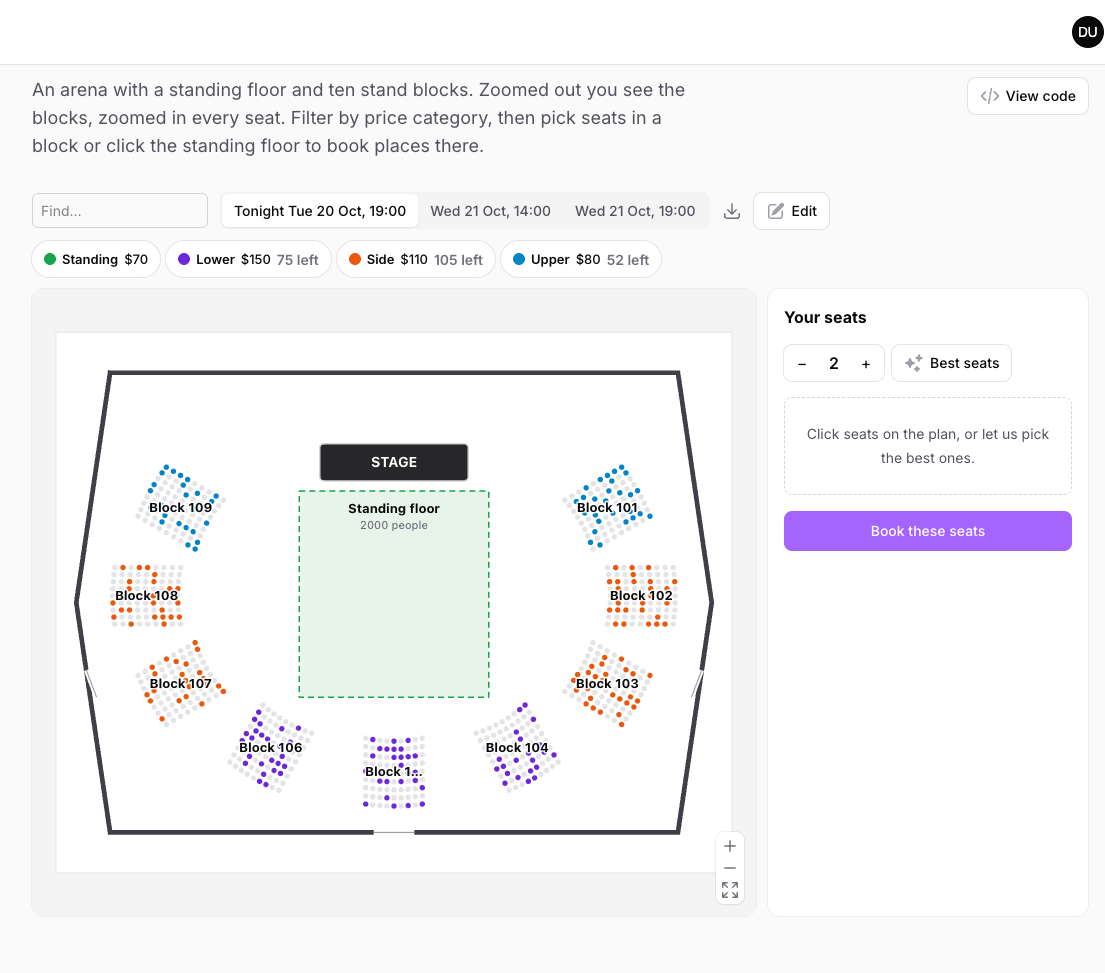
A section is a block of seats laid out from a few settings. Its position is the middle of its first row; rows go down from there, and with a curve they bend around a point above (the stage). In the editor, click a section and drag the sliders; the seats move as you drag.
| Setting | Meaning |
|---|---|
| Rows, seats per row | How many |
| Seat spacing, row spacing | In plan units |
| Curve | 0 for straight rows, 100 for rows bent into a third of a circle |
| Rotation | Around the middle of the first row |
| Row names | A, B, C (I and O are skipped) or 1, 2, 3, starting at "First row" |
| Seat numbers | From the left, from the right, or from the middle out (right first), starting at "First number" |
Each seat is an element of its own, with a number (code, such as C D-14: the section's code, the row and the seat number), a row and a number. When you change a section, seats that stay in the same place keep their identity, so bookings stay attached. Deleting a section deletes its seats; copying it copies them.
Seats need no model: give the seat type bookings through element() and every seat on the plan can be booked.
ElementType::make('seat')
    ->kind(Kind::Seat)
    ->bookings(BookingSource::make(Ticket::class)->element('floor_element_id')->schema([...]));
Single seats (a bar counter, a box) can be placed one by one with the Seat tool.
#Shows
sessions() replaces the time picker with buttons for the shows. Bookings inside a show's start and end belong to that show. The first show is open when the page loads.
between() takes dates or text. Text such as '2026-11-03 19:00' is read in the floor's time zone (timezone(), by default Filament's display time zone), like the time picker. Dates and Carbon instances are used as the moment they stand for.
use Qalainau\FilamentWarpFloor\Session;

$floor->sessions(fn (): array => Show::upcoming()->map(
    fn (Show $show): Session => Session::make((string) $show->id)
        ->label($show->starts_at->format('D j M, H:i'))
        ->between($show->starts_at, $show->ends_at),
)->all());
#Price categories
A plan with price categories is sold like a theater: seats are painted in their category's color, gray when sold, and the toolbar shows a chip per category with its price and the seats left. Click chips to show only some categories.
Categories belong to the plan. Add them in the editor (with nothing selected, under "Price categories"), or set them in code. Assign them to a section or a seat in the inspector, or with the "Paint a price category" tool: click a section to paint all its seats, Shift-click to paint one seat.
$plan->update(['categories' => [
    ['key' => 'S', 'name' => 'Premium', 'color' => '#6d28d9', 'price' => '$120'],
    ['key' => 'A', 'name' => 'Standard', 'color' => '#ea580c', 'price' => '$85'],
]]);
price is shown as written. When every price in the basket has digits in it, the basket also shows the total, written like the first price.
#The basket
On a plan with price categories, clicking a free seat puts it in the basket on the right instead of opening a form. In the "Best seats" box above the basket, choose how many seats you want and press "Pick 3 seats": it takes that many seats, side by side in one row, in the first category (or the categories you filtered), preferring rows near the front and the middle of a row, and puts them in the basket in place of the seats there. "Book 3 seats" at the bottom opens one form for all of them: the form of the seat type's booking source, saved once per seat. If someone took a seat in the meantime, nothing is booked and the taken seats are named.
The basket holds up to 50 seats. For a page where people buy their own tickets, set a lower limit; the basket says so, "Best seats" asks for no more, and a click on one seat too many shows a notice instead:
$floor->basketLimit(6); // up to 6 seats per booking
#Standing areas
An Area with a capacity can be sold by headcount. Give the source a quantity() column and allow overlaps; the area stays available until the quantities of its bookings reach its capacity, and a booking for more places than are left is refused.
ElementType::make('standing')
    ->kind(Kind::Area)
    ->bookings(
        BookingSource::make(Ticket::class)
            ->element('floor_element_id')
            ->quantity('quantity')
            ->allowOverlap()
            ->schema([TextInput::make('quantity')->integer()->minValue(1)->required(), ...]),
    );
On a seat map, clicking a standing area opens the booking form directly. The area shows how many places are left and, with an owner() column, how many tickets the signed-in person holds ("You have 3 tickets"); it does not turn wholly "yours", and other buyers' names are never sent for it.
#The box office
A ticket buyer and the box office look at the same seat map, but want different things: the buyer picks a few free seats, the box office also needs to see who bought a sold seat and to change it. Make two pages over the same plans. On the box office page, manageBookings() lets a click on a sold seat open the panel with the booking: who bought it, for when, and Move and Cancel.
// For the people buying tickets
class Tickets extends FloorPage
{
    public function floor(Floor $floor): Floor
    {
        return $floor->elementTypes([...])->sessions(...)->basketLimit(6);
    }
}

// For the staff at the box office
class BoxOffice extends FloorPage
{
    public function floor(Floor $floor): Floor
    {
        return $floor->elementTypes([...])->sessions(...)->manageBookings();
    }
}
Move asks you to click the new seat (Escape stops); the booking keeps its show and everything else, and a seat that is taken, unavailable or too small is refused with the reason. Cancel asks once more, then deletes the booking. The booking model's policy decides too, when there is one: update for moving, delete for cancelling.
On the box office, a form that books for someone else usually picks the customer. When the booking source has an owner() column and the form leaves it empty, it is filled with the signed-in user, so on the buyer's page the form need not ask who the booking is for.
#Workplaces
#The side panel
On plans without price categories, clicking a place opens a panel on the right with its kind, name and where it is, its capacity and features, who has booked it, its schedule for the chosen day ("Schedule · Tomorrow") as a bar and a list, and buttons to book it ("Book for tomorrow", or "Book 19:00–21:00" on an hourly floor), check in and see more actions. A place that is booked for the whole chosen time has no "Book" button, and on a day that is only partly booked the panel lists who has it when instead of naming one person. On narrow screens the panel moves below the plan.
Book a free time from the schedule. Click a free (green) part of the schedule bar and the booking form opens for that time: from the half hour you clicked, for the type's bookingLength() (a room's hour), or up to the next booking when the type has none (a desk for the rest of the day). On an hourly floor it is the hourly() length. A booked part or a time that has passed says so instead.
#Who's in
whoIsIn() lists, while no place is selected, everyone with a booking on the chosen day (or time) on any floor of the page, with their places and times: "Who's in · Tomorrow (21)". Clicking a person opens their floor and selects their place. It needs person() on the booking source.
$floor->whoIsIn();
#Team areas
neighborhood() puts places in team areas ("Sales", "Design"). An "Area" filter then appears above the plan and fades out the places of other areas (places of types without areas, like meeting rooms, stay as they are). myNeighborhood() names the signed-in user's area: it comes first in the filter as "Sales (your team)". The side panel shows the area of a place, and with an area chosen, "Who's in" lists only the people sitting there.
$floor
    ->myNeighborhood(fn (): ?string => auth()->user()?->team)
    ->elementTypes([
        ElementType::make('desk')
            ->model(Desk::class)
            ->neighborhood('team')   // an attribute of the record, or fn (?Model $record, FloorElement $element): ?string
            ->bookings(...),
    ]);
#Who booked it
person() names the person behind a booking. Desks and seats then show the person's initials (or photo) in a colored circle, the side panel shows the name, and the search box finds the person on the plan.
BookingSource::make(Reservation::class)
    ->morph('bookable')
    ->person(fn (Reservation $reservation): array => [
        'name' => $reservation->user->name,
        'avatar' => $reservation->user->avatar_url,   // optional
    ])
    ->owner('user_id');    // bookings of the signed-in user are shown as "Yours" in the primary color
person() also takes an attribute name (->person('guest_name')). With owner(), the bar above the plan lists the signed-in user's upcoming bookings: the next 14 days on every floor of the page, up to eight, each with its day ("Today", "Tomorrow", "Thu 23 Oct"), time and place. Clicking one opens that day and floor and selects the place. On a seat map with shows it lists the user's tickets for the show on screen instead.
#Check-in
checkIn() names the column that records when someone arrived. The signed-in user can check in from the bar above the plan or the side panel, on the day of the booking from 15 minutes before the start. With releaseAfter(), a booking that nobody checked in to is treated as free that many minutes after it started, so desks are not held by people who did not come.
BookingSource::make(Reservation::class)
    ->morph('bookable')
    ->owner('user_id')
    ->checkIn('checked_in_at')
    ->releaseAfter(30);
The usage page counts bookings that were never checked in to as no-shows.
QR codes on the desks. checkInCodes() adds "Print check-in QR codes" to the "Print or save" menu: a sheet with one code per place that has check-in, named like the plan ("A-03"), to cut out and stick on the desks. Scanning a code opens the page on that place and checks the signed-in user in to their booking there, or says that they have none right now (they can book it from the panel if it is free). Without arguments it is offered to people who can edit the plan; pass a closure to decide.
$floor->checkInCodes(); // or ->checkInCodes(fn (): bool => auth()->user()->isOfficeManager())
The codes point at the page itself with ?plan=…&element=…&check-in=1, so they keep working when the plan is edited. The same link without check-in=1 just opens the page on that place.
When a booking is freed. releaseNotices() emails the person whose booking was freed because they did not check in (the owner() column, read as a user of your auth.providers.users.model that uses Notifiable). The BookingReleased event is fired either way. Run the command every few minutes with the pages that show the floor:
// routes/console.php
Schedule::command('warp-floor:release-notices', [Office::class])->everyFiveMinutes();
Each booking is noticed once (--every=5 tells the command how often it runs; it looks back twice that long).
#Favorites, features and search
Signed-in users can star places in the side panel; "Favorites" above the plan shows only those. Favorites are kept per user in warp_floor_favorites.
Features are a list of keys on each element (window, monitor, standing, quiet, screen, video, ev, wheelchair), set with checkboxes in the editor. A chip appears above the plan for each feature the plan uses, with "Free only". Add or rename features:
$floor->features(['dual_screen' => 'Two screens', 'window' => 'By the window']);
When the plan has places of different sizes (meeting rooms by capacity, tables by chairs), a "Number of people" chip appears: "4+ people" fades out every place that is too small, so a host or someone booking a room sees at once where a group fits. With people('attendees') on the booking source, that number is filled into the form, and a booking for more people than the place's capacity or chairs is refused ("This place fits only 8 people").
Every entry of the legend is a button too: clicking "Available" (or your own state, such as "Running low" on a warehouse) fades out every other place. Click it again to show all.
The search box finds places by their name or the searchable columns of their record on every plan, and people by name on the open plan (its hint says so when a source has person()).
#Repeat bookings
repeatable() adds "Repeat" (every day, every weekday, every week, or on chosen days of the week such as Tuesday and Thursday) and "Repeat until" to the booking form. With "On days of the week", the day of the booking is chosen at first. After the first booking is saved, the copies are made; dates that are already taken are skipped and counted in the notification. Copies go up to a year ahead. Days are counted in the floor's time zone, so a booking at 09:00 stays at 09:00 after the clocks change.
BookingSource::make(Reservation::class)->morph('bookable')->repeatable()->schema([...]);
#Moving and cancelling bookings
manageBookings() adds Move (then click the new place) and Cancel to the rows of the day's schedule in the side panel; on a seat map, clicking a sold seat shows its booking with the same buttons. Cancel asks once more in the row ("Cancel this booking? Yes, cancel / Keep it") instead of a browser dialog. Pass a closure to decide per booking; it receives the booking as $booking and the place's record as $record. For example, people may change only their own bookings, and the front desk all of them:
$floor->manageBookings(fn (Reservation $booking): bool => $booking->user_id === auth()->id());
A move keeps the booking's time and checks the new place like a new booking: free, not unavailable, with room. The booking model's policy (update, delete) decides too, when there is one.
#Confirmations, calendars and events
confirmations() emails the person who booked (the signed-in user, when the model uses Notifiable) a confirmation with a calendar file (.ics) attached. A booking with its repeats, or several seats from the basket, go in one email.
BookingSource::make(Reservation::class)->morph('bookable')->owner('user_id')->confirmations();
addToCalendar() puts a calendar button next to each of the user's upcoming bookings; it saves an .ics file that every calendar app opens.
To send your own messages (Slack, SMS) or keep a log, listen to the events. Each has $booking, $element (the place) and $source:
| Event | When |
|---|---|
Events\BookingCreated |
a booking was made from the form, the basket or as a repeat |
Events\BookingMoved |
a booking was moved ($from is the old place) |
Events\BookingCancelled |
a booking was cancelled from the side panel |
Events\BookingReleased |
nobody checked in, so the booking was freed (warp-floor:release-notices) |
Event::listen(BookingCreated::class, fn (BookingCreated $event) => Log::info("Booked {$event->element->label}"));
#Restaurants: walk-ins and the waitlist
walkIns() adds "Seat now (walk-in)" to the side panel of a free table: the booking form opens from now (rounded down to the quarter hour, so give the form's times a 15-minute step) for the hourly() length. It shows only when the table is free for that long.
waitlist() keeps the parties waiting for a table. While no table is selected, the side panel lists them in the order they came, with how long they have waited, and "Add to waitlist" opens your form. "Seat" fades out the tables that are too small for the party; clicking a free table opens the booking form from now with their name and party size filled in, and the party leaves the list once booked.
use Qalainau\FilamentWarpFloor\Waitlist;

$floor
    ->hourly(length: 120)
    ->walkIns()
    ->waitlist(Waitlist::make(WaitingParty::class)
        ->name('guest_name')
        ->people('party_size')
        ->schema([
            TextInput::make('guest_name')->required(),
            TextInput::make('party_size')->integer()->required(),
            TextInput::make('phone')->tel(),
        ])
        ->fillBookingUsing(fn (WaitingParty $party): array => ['guest_name' => $party->guest_name]));
The party size goes into the booking source's people() column. onSeated(fn (Model $party, Model $booking) => ...) replaces the default (deleting the party), and modifyQueryUsing() narrows the list (today only, for example). In a panel with tenancy, the list is scoped to the team like the bookings.
#Menus and tooltips
recordActions() adds Filament actions to the right-click menu (press and hold on touch screens) and to "More" in the side panel. They receive the place's record; labels and visibility are evaluated for that record when the menu opens. After an action, the plan is reloaded, so a renamed record shows its new name.
ElementType::make('desk')
    ->recordActions([
        Action::make('outOfOrder')
            ->label(fn (Desk $record): string => $record->is_available ? 'Mark as out of order' : 'Mark as working')
            ->action(fn (Desk $record) => $record->update(['is_available' => ! $record->is_available])),
    ])
    ->tooltipUsing(fn (Desk $record, Collection $bookings): array => ["Monitor: {$record->monitor}"]);
By default the tooltip lists the bookings in the time range with their times and titles. Seats with a price category show their section, row, number, category and price without asking the server.
#Editor
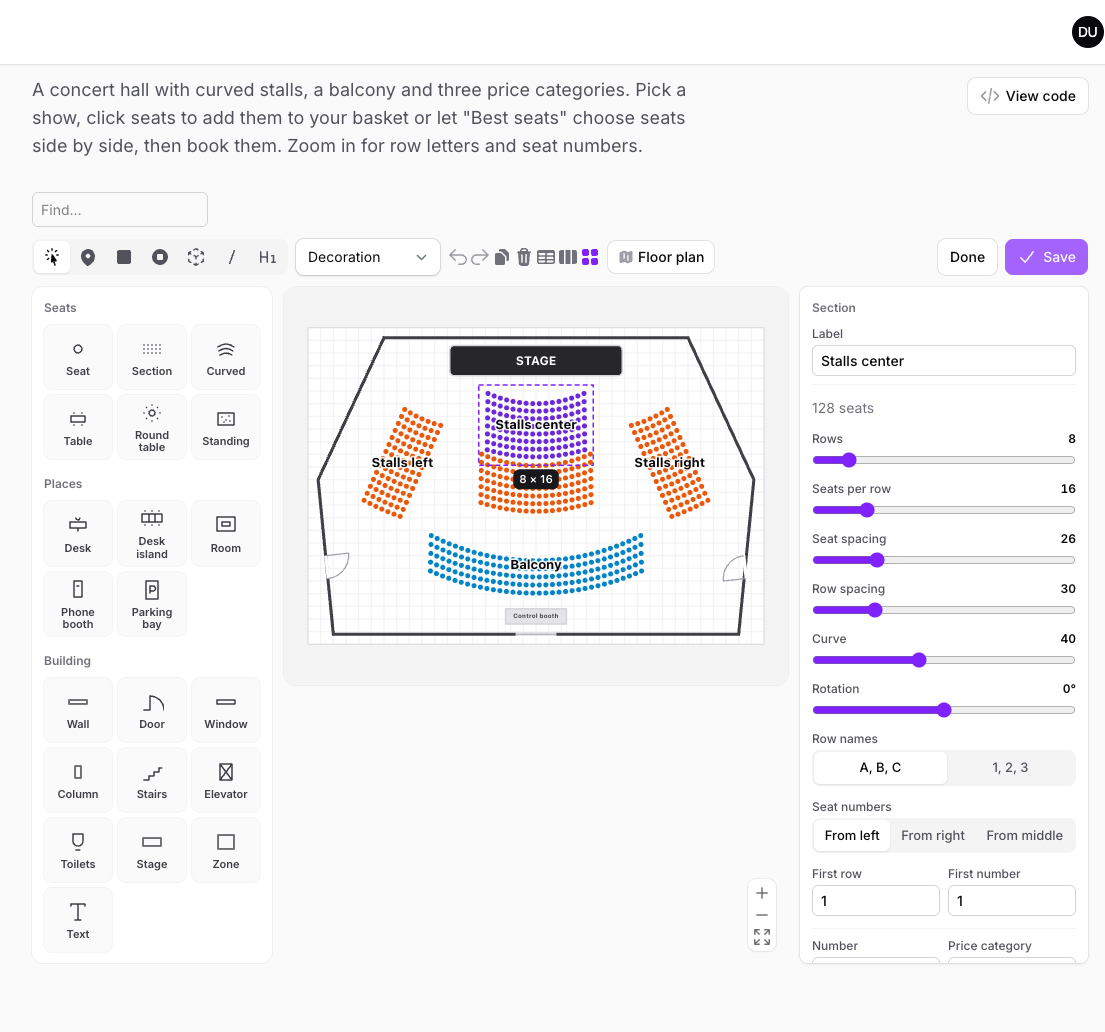
editable() adds an Edit button. When FloorPlan has a policy, update decides who may edit a plan, create who may add plans and delete who may delete them; view hides plans.
$floor
    ->editable(fn (): bool => auth()->user()->is_facility_manager)
    ->backgroundDisk('s3')       // defaults to Filament's upload disk
    ->unitsPerMeter(50);         // how many plan units make a meter (for wall lengths); the default grid of 10 is 20 cm
People who book and people who draw plans are usually not the same. Keep editable() off the booking pages and make a page for the people who draw, which opens straight in the editor:
class Layouts extends FloorPage
{
    public function floor(Floor $floor): Floor
    {
        return $floor->elementTypes([...])->editable()->openInEditor()->timePicker(false)->sidePanel(false);
    }
}
Screen size. The editor shows “What to place” on the left (240 px) and the selected element's settings on the right (288 px), with the plan in between. Next to Filament's sidebar, that leaves the plan about 1,000 px on a 1920 × 1080 screen, which is ideal, and only about 500 px on 1440 × 900. Make the sidebar collapsible so the people who draw plans can make room — on 1440 × 900 the plan then gets about 750 px, which is comfortable:
// in your PanelProvider
$panel->sidebarCollapsibleOnDesktop();
Below about 1280 px wide, edit on a bigger screen. Booking works at any width, down to phones.
In the editor:
- What to place: the panel on the left groups seats (seat, section, curved section, table, round table, standing area), places (desk, desk island, room, phone booth, parking bay), building parts (wall, door, window, column, stairs, elevator, toilets, stage, zone, text) and furniture. Click one, then click the plan. Seats, desks, parking bays, plants and columns can be placed one after the other; Escape stops. Places get the element type of the same kind, so they can be booked once linked.
- Walls: click to add corners, double-click or press Enter to finish. The length of each side is shown in meters.
- Doors and windows: click on a wall; they are set into the nearest side of the wall with the wall's thickness. They stay on their wall: moving the wall, dragging, adding or removing its corners carries them along, and deleting or copying the wall deletes or copies them too.
- Sections: click a seat to select its section, click again to select that seat. The inspector shows the section's sliders, row names and numbering. Each new section gets its own code (S1, S2 …) that starts its seat numbers, so seats never share a number. Seats you delete from a section (an aisle, a pillar) stay deleted when you move the sliders; "Bring back removed seats" in the inspector restores them.
- Price categories: add, rename, recolor and remove them in the inspector; all of it can be undone. Removing a category takes it off the seats it painted.
- Moving and shaping: drag to move, snapped to the plan's grid and to the edges and middles of nearby places (pink guides; hold Alt to place freely). Drag the handles to resize or rotate, drag a polygon's vertices, drag the dot in the middle of an edge to add a vertex, Alt + click a vertex to remove it. Arrow keys move the selection by a grid step.
- Inspector: name, number, price category, capacity, chairs, features, thickness, door direction and what a piece of furniture is, depending on the kind; position and size; the linked record.
- Shapes: select (V), point (P), rectangle (R), circle (C), polygon (G), line (L) and text (T) for anything the panel does not have.
- Selection: click, Shift + click, drag over empty space, Ctrl/Cmd + A. Align, distribute, bring to front and send to back from the toolbar.
- Rows and columns: place a grid of points, rectangles or circles with numbered labels (
A-{n},{ROW}{col},Seat {n:3}) and, optionally, link them to the unplaced records in list order. - Unplaced records: the records of a type that are on no plan yet. Drag one onto the plan to place it, or onto an unlinked element to link it.
- Bookings ahead: deleting places that still have bookings ahead, or changing their type, asks first and says how many bookings it affects.
- Saving: only the changes are sent. If someone else saved the plan in the meantime, nothing is overwritten and the editor offers to reload it. While a save or a background upload is on its way, the plan can be panned but not changed, so no change made in that moment is lost. A background goes to the plan it was chosen for, even if you switch to another plan while it uploads.
#Templates
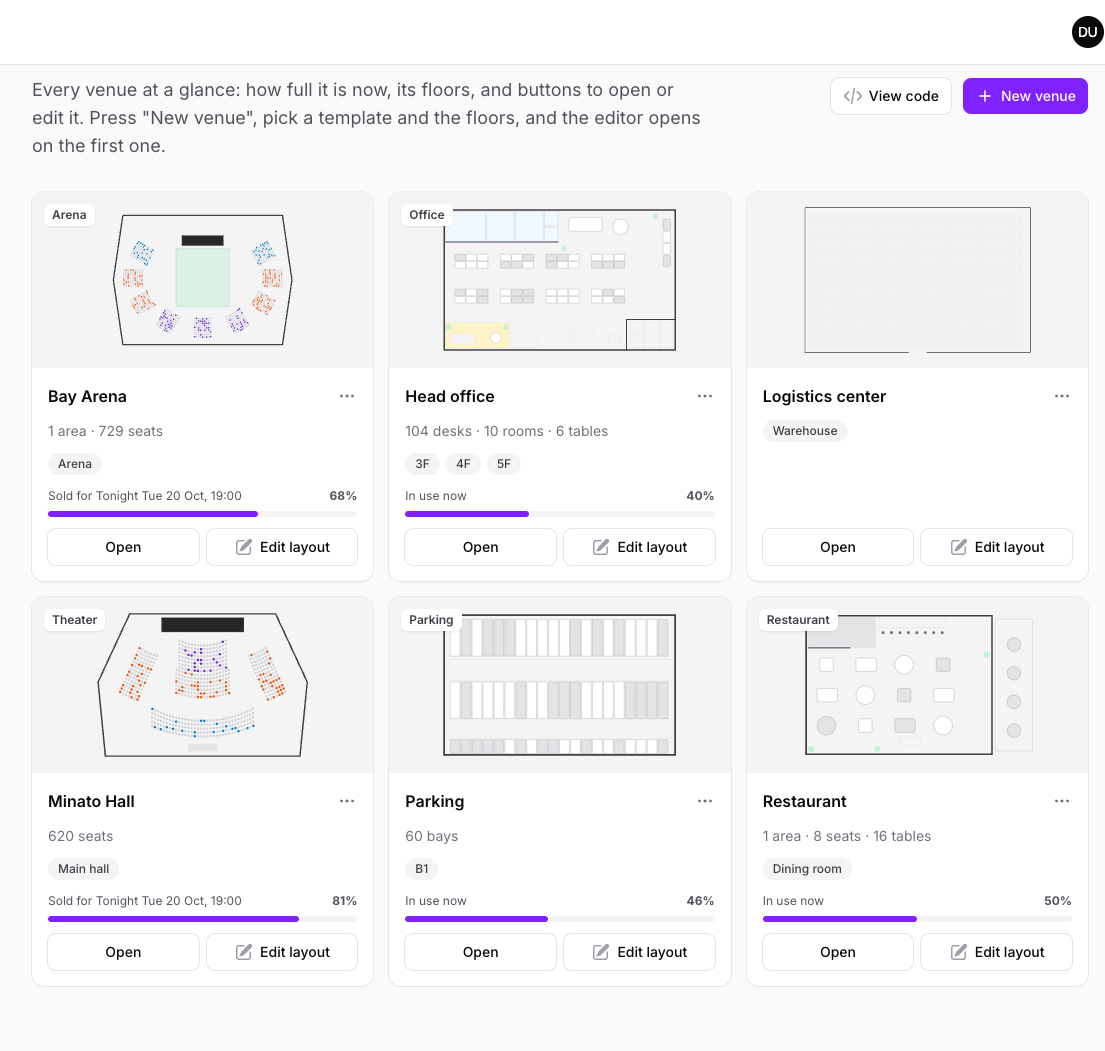
A template fills a plan with a ready-made layout. Warp Floor comes with OfficeTemplate, TheaterTemplate, ArenaTemplate, RestaurantTemplate, ParkingTemplate and BlankTemplate.
use Qalainau\FilamentWarpFloor\Templates\TheaterTemplate;

$plan = FloorPlan::create(['name' => 'Main hall', 'group' => 'Harbor Hall']);

TheaterTemplate::make()->apply($plan, $floor->getElementTypes());
apply() replaces what the plan had, sets its size and price categories, and gives each element the element type of the same kind (seats, desks, rooms…), so they can be booked once linked. Places with a model are not linked to records; link them in the editor.
Templates from the editor. In the editor, "Floor plan" → "Save floor as template" keeps the whole floor (walls, places, sections with their seats and price categories), and "Save selection as template" keeps only what is selected — a desk island, a meeting room with its furniture — moved to the top left. Saved templates are offered when someone creates a new venue or a new floor ("Start from"), and appear at the top of "What to place": click one, then click the plan where its top left corner should go. Places are not linked to records (link them from "Not placed yet"), and places of a type the page does not have get the type of the same kind. Saved templates live in warp_floor_templates and follow the panel's tenancy like the plans. A floor started from a piece keeps the size you asked for.
Make your own by extending PlanTemplate and drawing with the Blueprint:
use Qalainau\FilamentWarpFloor\Templates\Blueprint;
use Qalainau\FilamentWarpFloor\Templates\PlanTemplate;

class CoworkingTemplate extends PlanTemplate
{
    public function getName(): string
    {
        return 'coworking';
    }

    public function getSize(): array
    {
        return [1200, 800];
    }

    protected function build(Blueprint $b): void
    {
        $b->walls(20, 20, 1160, 760);
        $b->door(560, 780, 640, 780);
        $b->island(100, 100, 4, 'A');                       // 4 × 2 desks named A-01 …
        $b->room(800, 40, 300, 200, 'Studio', 6, ['screen']);
        $b->section(600, 450, 'Talks', ['rows' => 5, 'seats' => 12, 'curve' => 30], 'S');
        $b->plant(1100, 700);
    }
}
#Venues and floors
VenuesPage shows each venue (each group of plans) as a card: a picture of its first plan, what kind of venue it is, what it holds ("624 seats", "104 desks · 10 rooms", "3,000 places" for places of your own types), its floors, how full it is — for the next show, today on a floor booked by the day, or now on an hourly floor — and buttons to open it or edit its layout. "New venue" asks for a name, a template and the floors, creates them and opens the editor on the first one. The menu on each card adds a floor (blank or as a copy of another floor), renames the venue or deletes it with its floors.
Extend it and tell it which floor page opens the plans:
use Qalainau\FilamentWarpFloor\Pages\VenuesPage;

class Venues extends VenuesPage
{
    protected static ?string $floorPage = Office::class;
}
When venues open in different pages, override floorPageFor():
protected function floorPageFor(FloorPlan $plan): ?string
{
    return $plan->template === 'theater' ? Theater::class : Office::class;
}
The element types and bookings of that page are used for the "how full" bar and for the templates.
"Edit layout" and "New venue" open the editor on the same page. When layouts are drawn on a page of their own (see Editor), override editPageFor(); its element types are then offered in the templates:
protected function editPageFor(FloorPlan $plan): ?string
{
    return Layouts::class;
}
#Usage
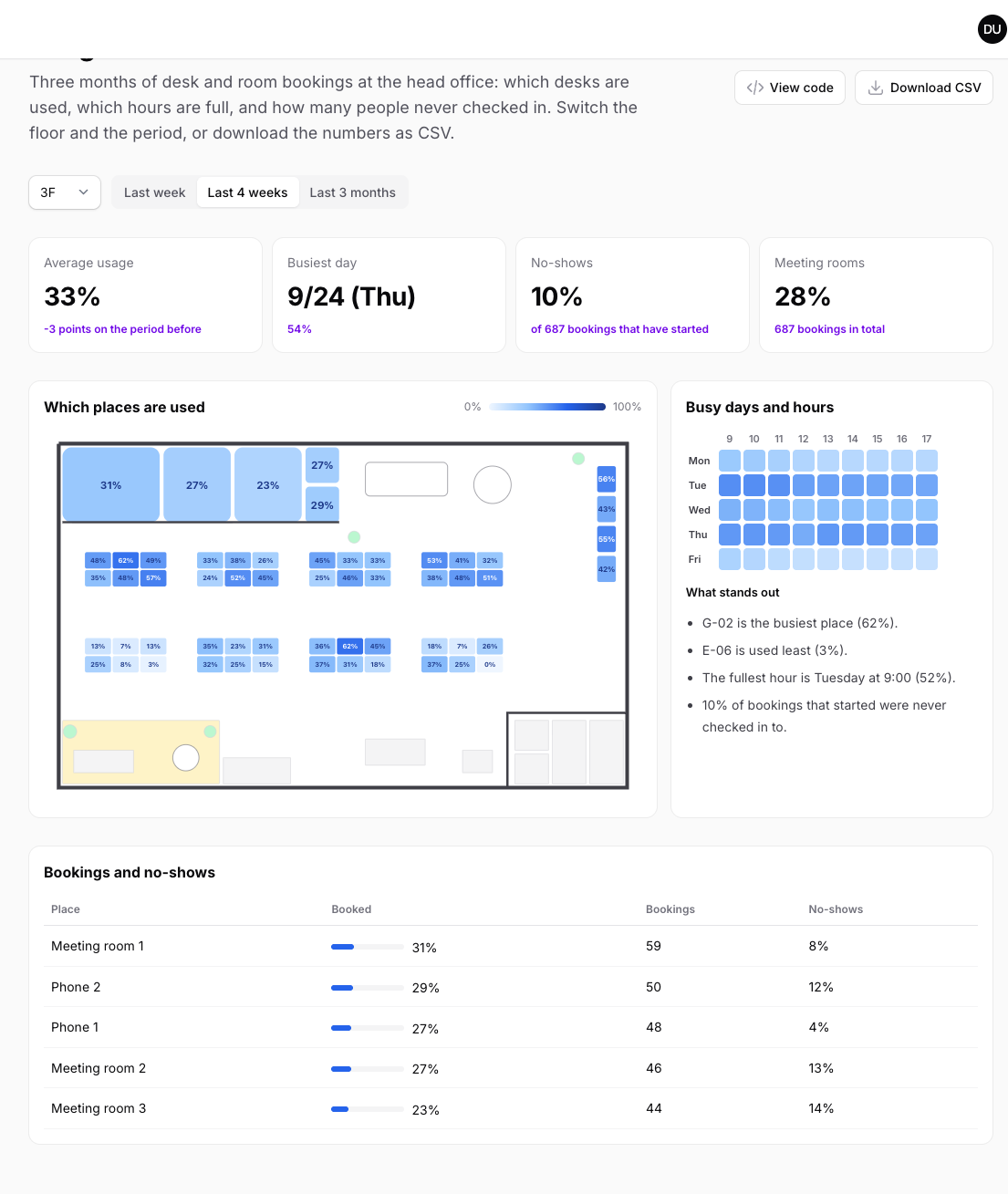
UsagePage measures how much each place was booked within business hours on weekdays, over the last week, four weeks or three months (up to yesterday):
- the average usage against the period before, the busiest day, the share of no-shows (with check-in) and how much the rooms were booked, with their number of bookings;
- the plan with each place colored by its usage;
- a weekday by hour grid of how full the plan was;
- what stands out (the busiest and least used places, the fullest hour, no-shows);
- a table of the places of one kind (rooms first, or desks, tables…), most used or least used first — the least used desks are the ones nobody needs — and a CSV download of every place.
use Qalainau\FilamentWarpFloor\Pages\UsagePage;

class Usage extends UsagePage
{
    protected static ?string $floorPage = Office::class;
}
It reads the plans, element types, bookings, business hours and time zone of that page. Bookings that were never checked in to still count as booked time. Places that are out of order right now (unavailableWhen()) are marked "Unavailable" in the table, come last in "Least used" and are not named as the least used place: they need fixing, not removing.
#Backgrounds and PDF floor plans
Choose a PNG, JPG, GIF, WebP or SVG file, or a PDF: for a PDF the editor shows the pages, renders the one you pick to an image in the browser (with pdf.js, loaded only then) and uploads that. A plan without elements takes the size of the image (the long side capped at 2,400 units); a plan with elements keeps its width so the elements stay where they are. SVGs with scripts, event handlers or external references are refused. Draw walls, rooms and seats on top of the drawing.
Livewire limits temporary uploads to 12 MB by default, below the 20 MB the floor accepts. To allow larger drawings, raise it in config/livewire.php (or in a service provider):
config(['livewire.temporary_file_upload.rules' => ['required', 'file', 'max:20480']]);
#Tenancy
Warp Floor works with Filament's multi-tenancy, so one app can serve many teams or companies (a SaaS). Each team sees and changes only its own plans, places and bookings, in the same panel. A panel without tenancy in the same app (an /admin panel) shows only the plans made without a team, never the teams' plans.
A full panel, with teams that users join through a team_user table:
use App\Models\Team;

public function panel(Panel $panel): Panel
{
    return $panel
        ->id('app')
        ->path('app')
        ->tenant(Team::class)                 // or ->tenant(Team::class, slugAttribute: 'slug')
        ->pages([Office::class, Venues::class, Usage::class])
        ->login();
}
use Filament\Models\Contracts\HasTenants;

class User extends Authenticatable implements FilamentUser, HasTenants
{
    public function teams(): BelongsToMany
    {
        return $this->belongsToMany(Team::class);
    }

    public function getTenants(Panel $panel): Collection
    {
        return $this->teams;
    }

    public function canAccessTenant(Model $tenant): bool
    {
        return $this->teams()->whereKey($tenant)->exists();
    }
}
Give the models of your places and bookings a team() relationship, the same one Filament's resources use:
Schema::table('desks', fn (Blueprint $table) => $table->foreignId('team_id')->constrained());
Schema::table('reservations', fn (Blueprint $table) => $table->foreignId('team_id')->constrained());

class Desk extends Model
{
    public function team(): BelongsTo
    {
        return $this->belongsTo(Team::class);
    }
}
Warp Floor's own table already has the columns it needs: warp_floor_plans.tenant_type and tenant_id (a morph, so any tenant model works). They are string columns, so teams and users with UUID or ULID keys work too (warp_floor_favorites.user_id as well). No other migration is needed.
Places with UUID or ULID keys. The link from an element to its record (warp_floor_elements.bookable_id) follows Laravel's morph key type. When your desks, rooms or other places use UUID or ULID keys, set it before you run Warp Floor's migrations, for example in AppServiceProvider:
use Illuminate\Support\Facades\Schema;

public function boot(): void
{
    Schema::morphUsingUuids();     // or Schema::morphUsingUlids()
}
Mixing places with number keys and places with UUID keys in the same app is not supported.
What is kept apart for each team
| What | How |
|---|---|
| Plans and their elements | A plan belongs to the team that created it (in the editor, on the venues page or from a template). The plan list, ?plan= in the URL, search, the side panel, tooltips, menus, favorites, saving in the editor and backgrounds only see the team's plans. A plan or element ID of another team is treated as missing. |
| Places (desks, rooms, parking spots) | The editor's "Not placed yet" list and linking an element to a record only offer the team's records, through the model's team() relationship. A record counts as placed only when it is on one of the team's plans. |
| Bookings | States, "who booked it", the day schedule, "My bookings today", check-in, the box office (moving and cancelling) and the usage page only read the team's bookings. A new booking, every seat of the basket and every repeat get the team. |
| Venues and usage | VenuesPage lists, creates, copies, renames and deletes only the team's venues. UsagePage only offers the team's plans. |
The names are checked per team too: two teams can each have a "Head office" with a "3F".
Other relationship names
Filament's ownershipRelationship on the panel is used for places and bookings as well, so ->tenant(Team::class, ownershipRelationship: 'company') reads company() on your models. When one model names it differently, or belongs to teams through a many-to-many relationship, say so on the type or the source:
ElementType::make('room')
    ->model(Room::class)
    ->tenantOwnershipRelationshipName('teams')        // a BelongsToMany: rooms shared by some teams
    ->bookings(
        BookingSource::make(Reservation::class)
            ->morph('bookable')
            ->tenantOwnershipRelationshipName('organization'),
    );
A BelongsTo or MorphTo relationship is filled in on new bookings; a BelongsToMany one is attached after saving.
Sharing between teams
$floor->scopeToTenant(false)shares the plans of the floor with every team (and then nothing is scoped by the floor: places and bookings neither). Setprotected static bool $isScopedToTenant = false;on yourVenuesPageas well, so the venues page shows the same plans.ElementType::make('desk')->scopeToTenant(false)lets every team place the same records (for example rooms in a shared building), while the plans stay apart.BookingSource::make(...)->scopeToTenant(false)shows the bookings of every team on those records and does not set the team on new bookings. Use it together with the shared records above, so that two teams cannot book the same shared room at the same time.
Good to know
- The records you place need the relationship. If the model of an
ElementTypehas noteam()relationship (and no other name is given), Warp Floor throws an exception instead of offering every team's records; it says which relationship is missing. Add the relationship, name it withtenantOwnershipRelationshipName(), or callscopeToTenant(false)when the records are shared by every team. A booking model without the relationship is not scoped by it (its bookings still only show on the team's plans); when you name a relationship that it does not have, Warp Floor throws an exception too. modifyRecordsQueryUsing()andmodifyQueryUsing()still work and run after the team scope, for extra filters.- Bookings made before you added
team_idhave no team, so a team no longer sees them. Fill the column for existing rows (for example from the place they belong to) before turning tenancy on. - Plans made before the panel had tenancy have no tenant and are not shown to any team; they are shown only in panels without tenancy. Give them one with
$plan->tenant()->associate($team)->save(). - In a team panel before the team is known, no plan is shown. Outside a panel (a job, a command) plans are not filtered.
- A page outside the panel (a public booking page, a job, a command) has no current tenant. Pass the plans yourself with
plans(FloorPlan::query()->whereMorphedTo('tenant', $team)), and scope your own queries. - Policies (
view,update,create,deleteonFloorPlanand the booking model) work as before and are checked on top of the team.
#Help for your users
People who open a floor for the first time often don't know that they can drag, zoom or right-click. Every floor has a How to use button above the plan, next to the zoom buttons. It opens a short guide on top of the plan. Pressing ? while the plan has the focus opens it too, and Escape closes it.
The guide changes with what is on screen:
- Booking (an office, a car park): how to move and zoom, how to see and book a place, the keyboard, and the colors of the states on this plan.
- Seat maps (plans with price categories): how to put seats in the basket, standing areas and "Best seats", and the colors of the price categories, sold seats and seats in the basket.
- Editor (only on editable floors): how to place things, walls, doors and windows, unplaced records, selecting, moving, resizing and rotating, and every shortcut. In the editor, the panel on the right also says what to do first ("Pick something under What to place …") and, once something is picked, how to place it — so this works on touch screens too, where there is no hover.
The guide is translated like the rest of the plugin (ten languages). To turn it off, for example in a small dashboard widget:
public function floor(Floor $floor): Floor
{
    return $floor
        ->plans(FloorPlan::query())
        ->help(false);
}
help() also takes a closure, so you can show it only to some users: ->help(fn (): bool => ! auth()->user()->is_admin).
#Keyboard
| Key | Action |
|---|---|
| ? | Open or close the guide (see Help for your users) |
| Enter / Space | Pick the place nearest the center of the plan |
| Arrow keys | Move to the next place in that direction (with nothing picked: move the plan) |
| Enter | Book the picked place (or open its menu) |
| Shift + F10 | Open the picked place's menu |
| Escape | Clear the selection |
| + / − / 0 | Zoom in, zoom out, fit the plan |
| Shift + arrow keys | Move the plan |
The mouse wheel scrolls the page until the plan is clicked; then it moves the plan. Ctrl/Cmd + wheel or a pinch zooms at any time. On phones and tablets one finger scrolls the page and two fingers move and zoom the plan; a tap picks a place and a long press opens its menu. While zoomed in, the small map in the corner shows where you are; click or drag it to move. Screen readers get a list of the bookable places in reading order after the plan.
#Limitations
- A booking belongs to one place. Bookings that span several places are not shown on the plan.
- The basket books seats for one show at a time and does not hold seats while the form is open; a seat taken in the meantime stops the whole booking.
- Backgrounds from another domain are left out of printouts and PNG files unless that domain allows CORS.
- PDF floor plans are converted to an image when they are uploaded; the PDF itself is not kept.
#Troubleshooting
Nothing is drawn. Run php artisan filament:assets after installing or updating, and check that the page shows no JavaScript errors.
Every place is gray or has no state. Check that the element type has bookings(), and either a model() with the elements linked to records (the editor's inspector shows the linked record) or element() on the booking source.
Seats placed from a template cannot be booked. The template gives elements the element type of the same kind. Pass the floor's types to apply(), or give your seat type ->kind(Kind::Seat).
Two people booked the same place at the same moment and one got "database is locked". On SQLite, give the connection a busy_timeout (for example 5000) in config/database.php, so the second booking waits for the first one and is then refused cleanly. MySQL and PostgreSQL need nothing.
The background does not appear. Make sure the disk serves files (for the public disk, run php artisan storage:link), or use a disk that can create temporary URLs.
#Changelog
See CHANGELOG.md.
#Support
Ask a question or report a bug at https://warpui.com/support?plugin=floor. Do not post your license key in your question.
#License
Warp Floor is commercial software. See LICENSE.md for the license terms.
The author
From the same author
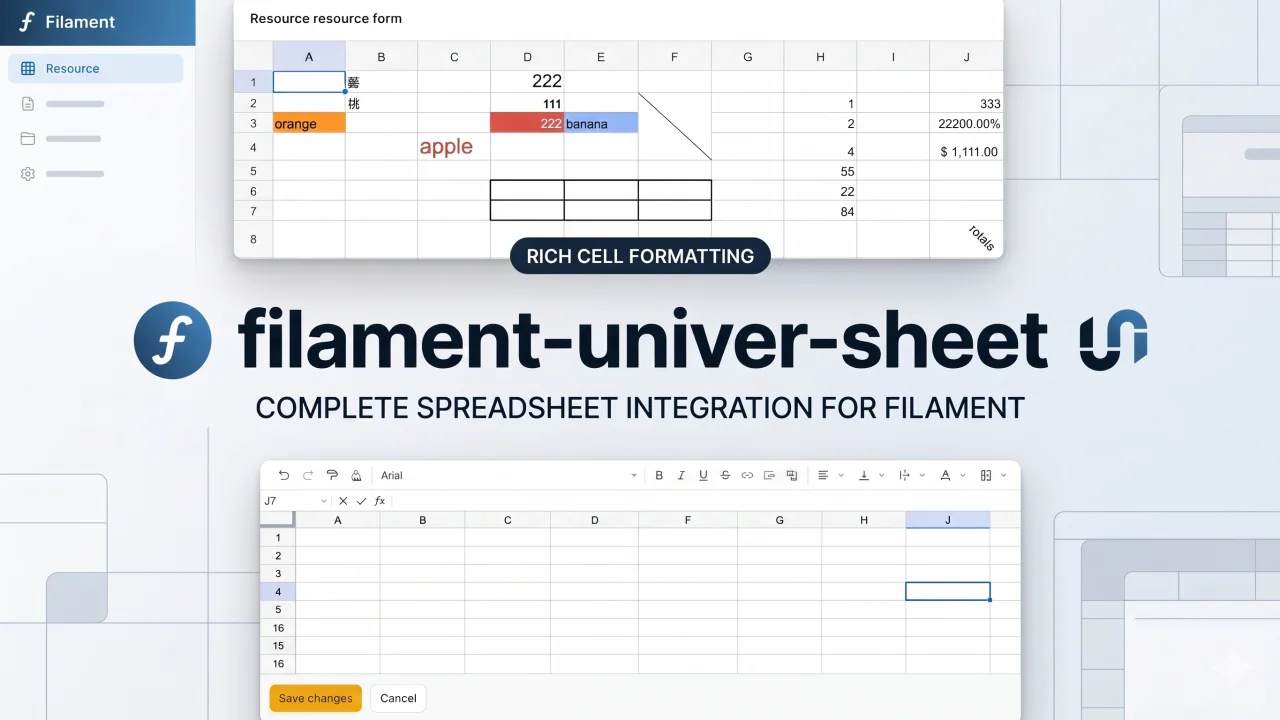
Univer Sheet
Integrate Univer Sheet into Filament — full spreadsheet editor for forms, read-only display for infolists, and compact preview for table columns.
Author:
Yuichi Okada
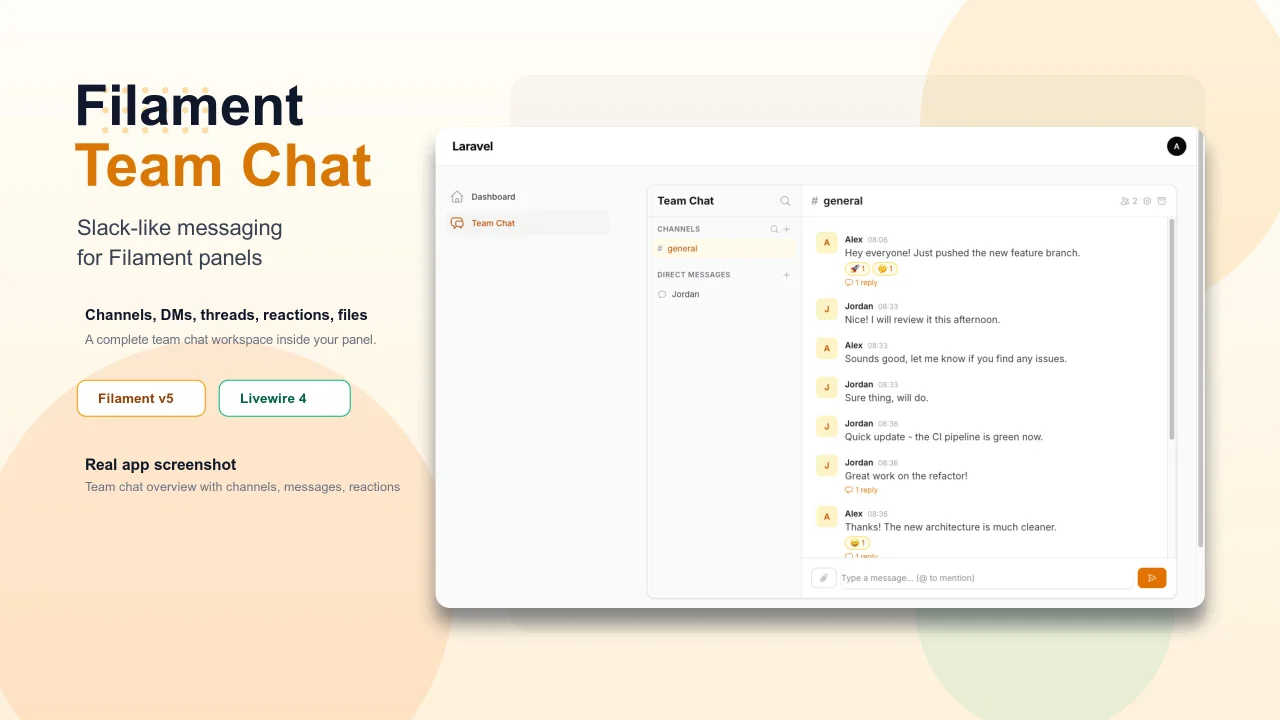
Team Chat
Add Slack-like team chat to any Filament panel — channels, DMs, threads, reactions, @mentions, file sharing, and unread tracking, all self-hosted with zero external dependencies.
Author:
Yuichi Okada
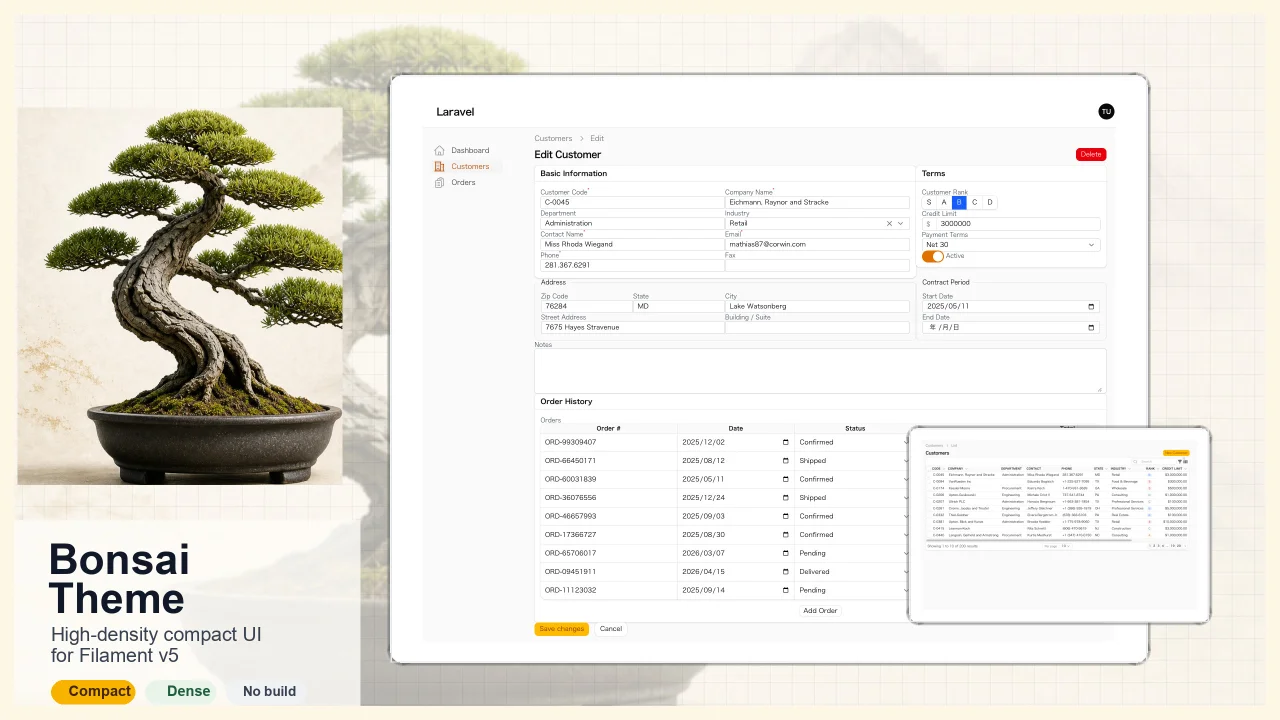
Bonsai Theme
High-density, compact UI theme for Filament v5. Inspired by Japanese business applications (sales, inventory, order management) that prioritize information density, Bonsai Theme reduces padding, gaps, and font sizes across all Filament components to fit more data on screen. No Tailwind build required. The theme ships as pre-compiled CSS and is loaded automatically.
Author:
Yuichi Okada
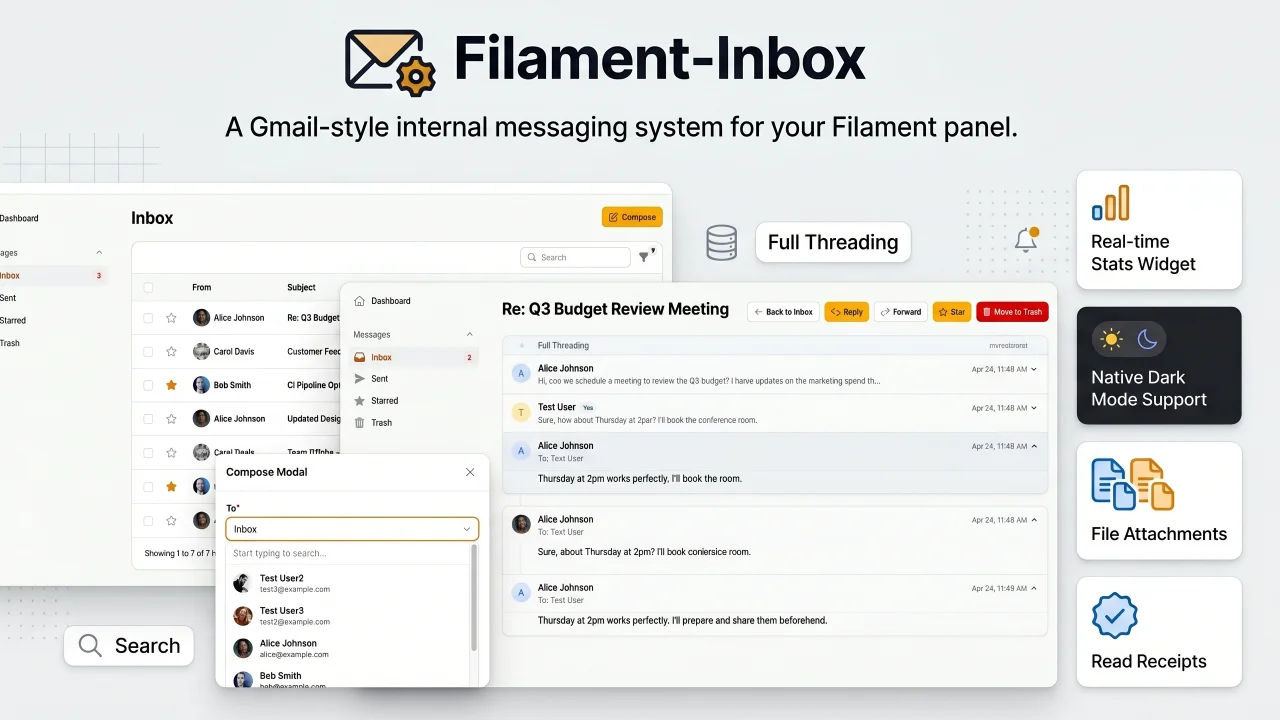
Inbox
A Gmail-style internal messaging system for your Filament panel. Provides inbox, sent, starred, and trash pages with full message threading, reply/reply all, forwarding, read receipts, rich text editing, file attachments, bulk actions, search & filters, database notifications, stats widget, dark mode, multi-tenancy support, and i18n (8 languages). Built natively for Filament v5 with Laravel events, configurable user model, and test factories included.
Author:
Yuichi Okada
Featured Plugins
A selection of plugins curated by the Filament team
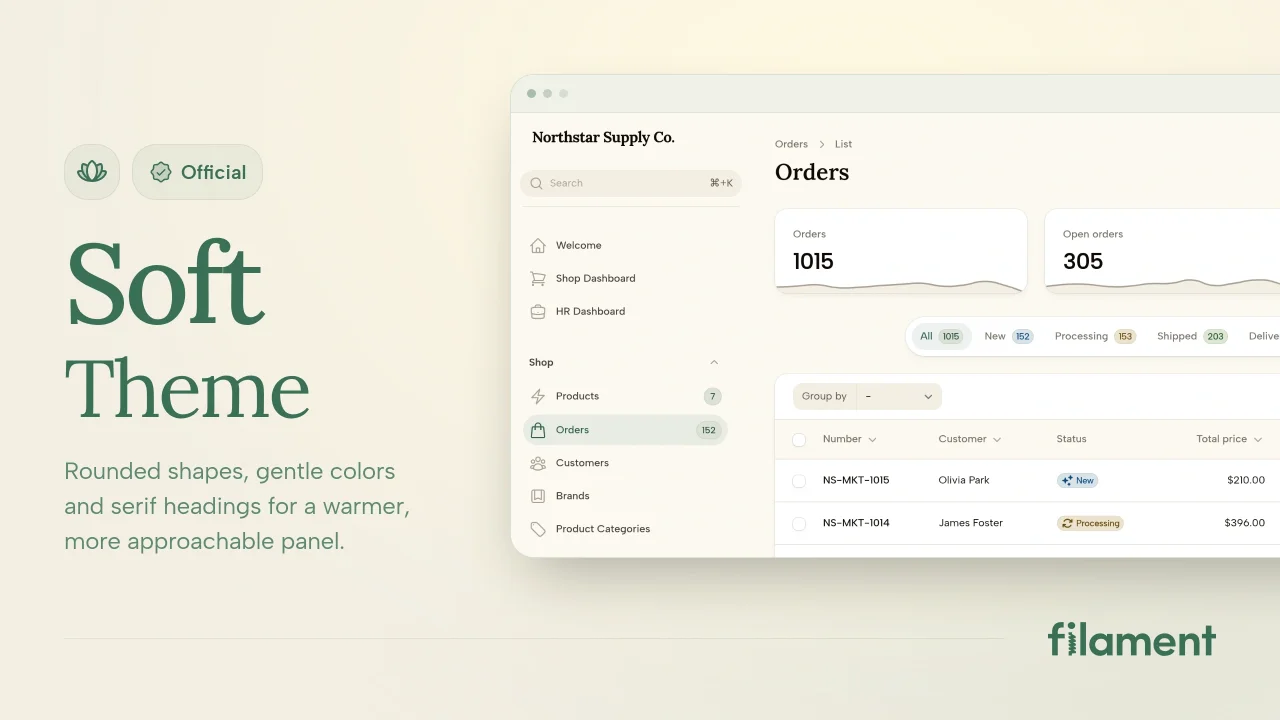
Soft Theme
A theme that gives panels a warm, approachable look with rounded shapes, gentle colors, and serif headings.
 Filament

Blueprint
Filament Blueprint is a premium Laravel Boost extension that helps AI agents produce accurate, detailed implementation plans and security reports for Filament apps.
Filament
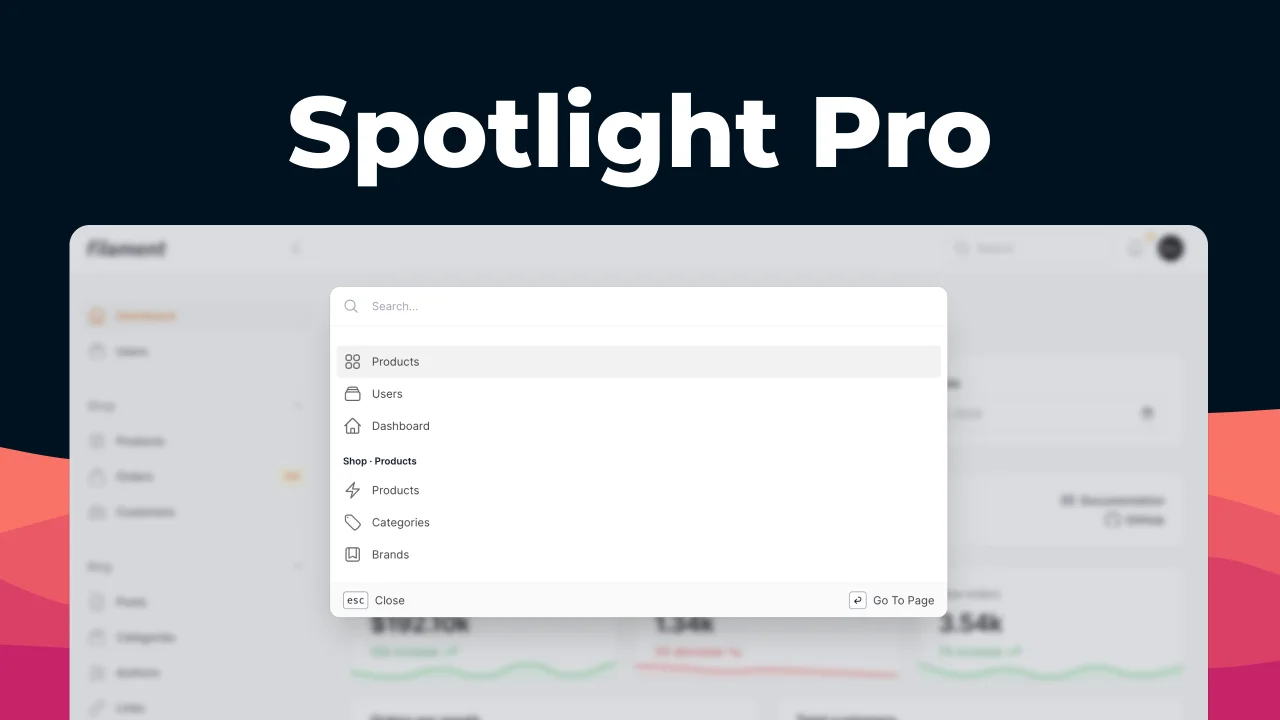
Spotlight Pro
Browse your Filament Panel with ease. Filament Spotlight Pro adds a Spotlight like Command Palette to your Filament Panel.
 Dennis Koch