
AI Visibility
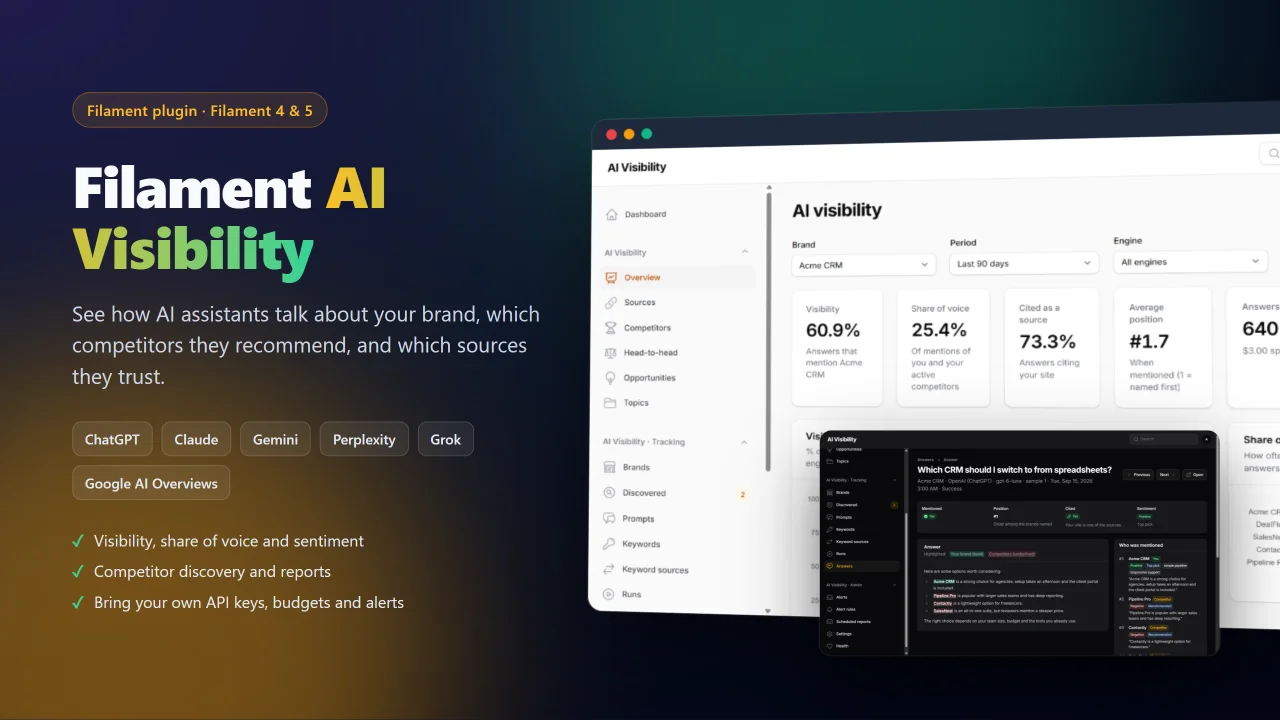
CommunityTrack how ChatGPT, Claude, Gemini, Perplexity, Grok and Google AI Overviews mention your brand, compare you with competitors, and see which sources they cite, using your own API keys.
filament/
namespace. Review the source and install at your own risk. Found
malware or an unresolved security issue the author won't
address?
Report it
.
 Author:
Israr Minhas
Author:
Israr Minhas
Documentation
- Documentation
- Requirements
- Installation
- Setup wizard
- Tracking runs
- Reports
- Keywords and prompt generation
- Answer analysis
- Competitor reports
- Competitor intelligence
- Alerts
- Scheduled reports
- One key is enough
- When something goes wrong
- Limits
- Multi-tenancy
- Permissions
- Plugin options
- Artisan commands
- Costs
- Testing
- License
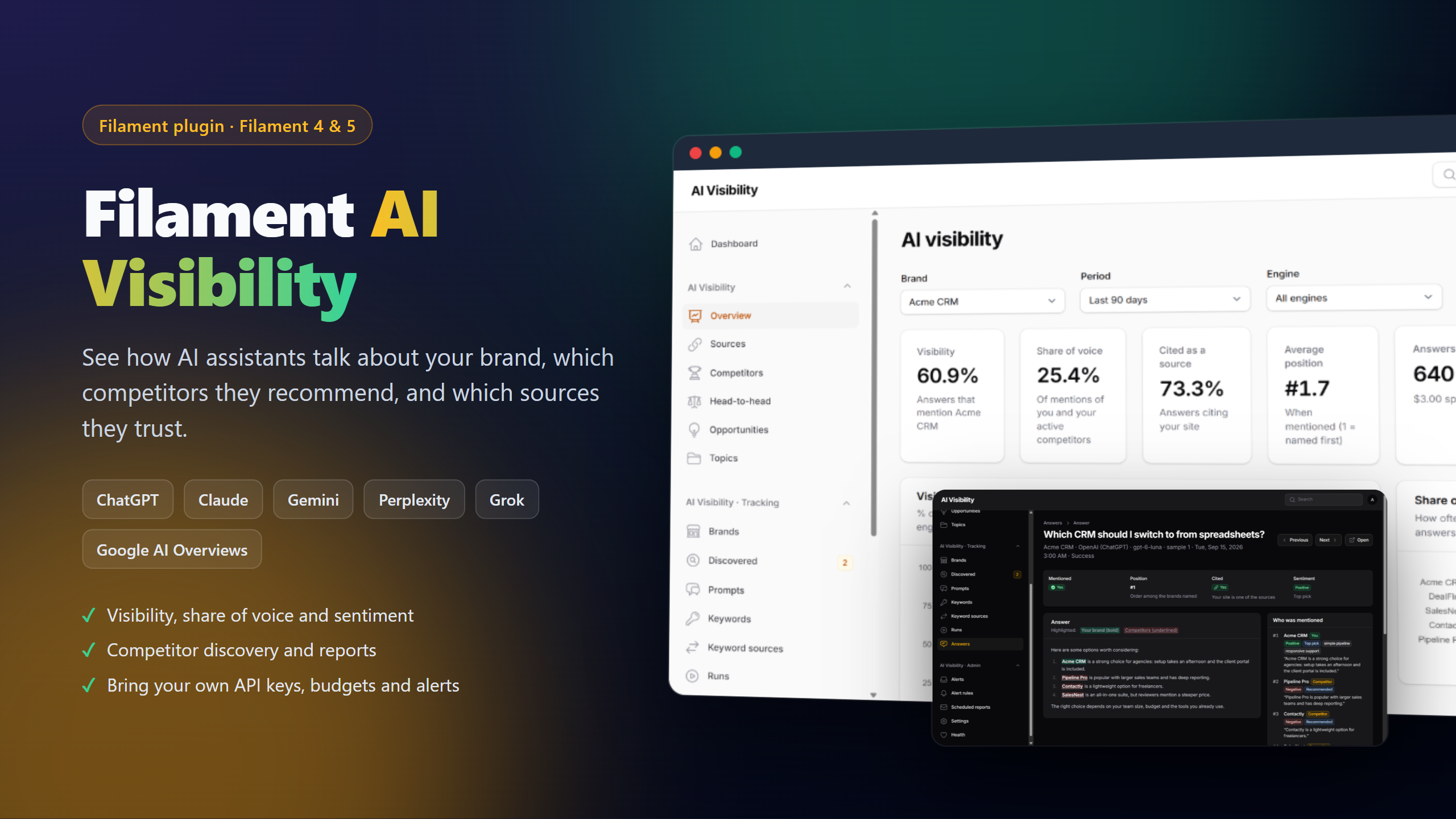
Track how your brand shows up in answers from ChatGPT, Claude, Gemini, Perplexity, Grok and Google's AI Overviews / AI Mode — with competitor intelligence, inside your own Filament panel. Bring your own API keys; one key is enough to start.
| Overview | Competitors |
|---|---|
 |
 |
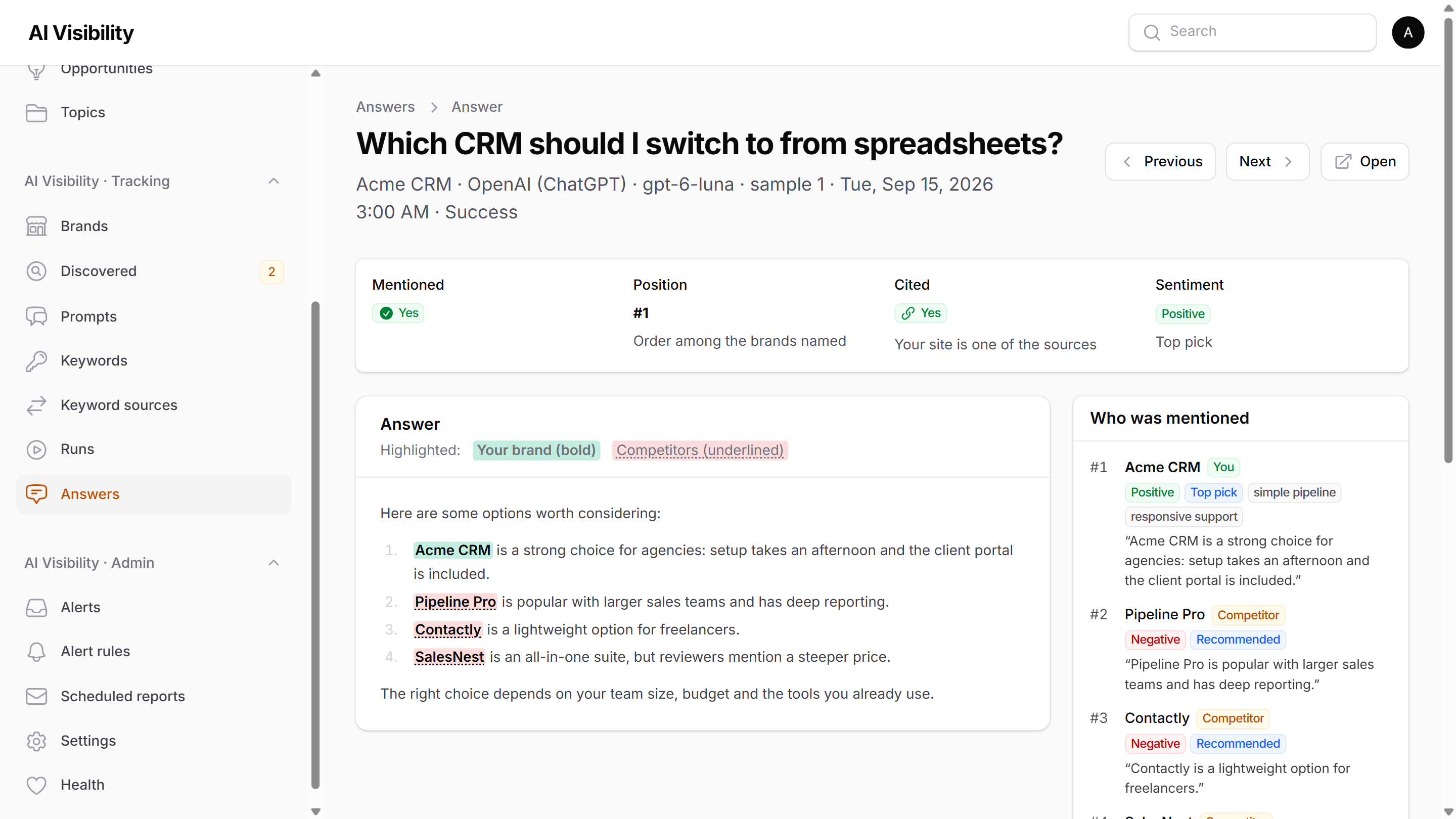
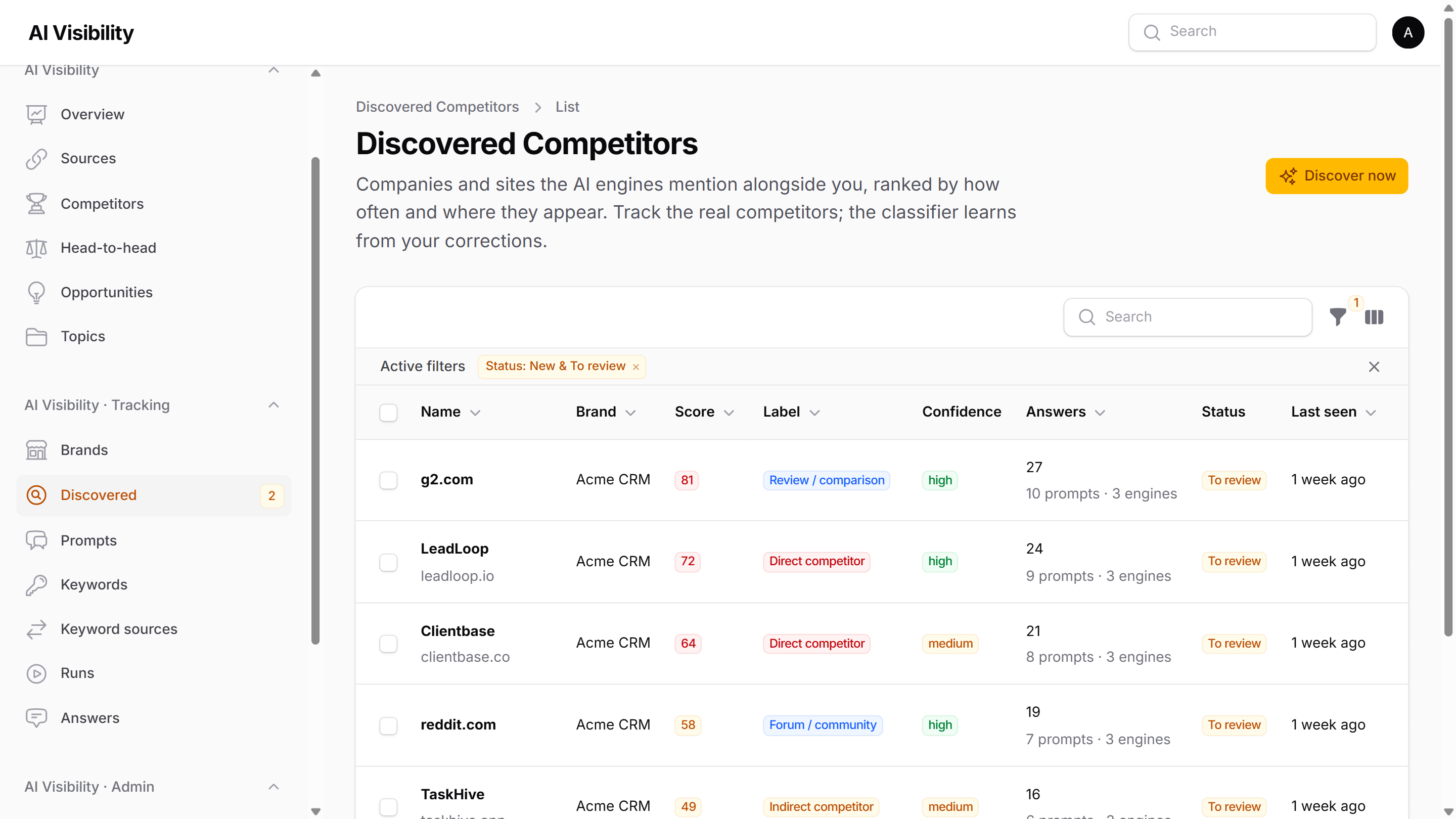
| An answer, analysed | Discovered competitors |
 |
 |
Screenshots use fictional sample data.
Status: beta (
v1.0.0-beta.1). Every feature is built and covered by 550+ tests on Filament 4 and 5.
- Checked against the real APIs: OpenAI and Claude (real-time answers), competitor discovery, and website fetching.
- Not yet run against the real APIs: Gemini, Grok, Perplexity, Google AI Overviews / AI Mode, and economy (batch) mode. These are covered only by tests with simulated responses, so treat them as beta.
Please open an issue if something doesn't work.
#Documentation
This README is an overview of the features. The developer documentation is in docs/:
- Installation: requirements, install command, setup wizard, upgrading, uninstalling
- Queues and scheduler: jobs, scheduled tasks,
retry_after, how many workers, Supervisor and Horizon - Configuration: every config key and env var, the Settings page, per-brand overrides
- Plugin options: every
AiVisibilityPluginmethod - Permissions and tenancy: access control and multi-tenancy
- Engines and costs: each engine, API keys, economy mode, pricing, estimates, budgets
- Extending: custom engines and keyword sources, events, container bindings, AI instructions, views
- Troubleshooting: Health checks, paused engines, stuck runs, detection, emails, multi-server
#Requirements
- PHP 8.2+
- Laravel 11.28+ (tested up to Laravel 13)
- Filament 4.x (Livewire 3) or Filament 5.x (Livewire 4)
- A queue worker and the Laravel scheduler
- An API key for at least one of: OpenAI, Anthropic, Google Gemini, xAI (Grok), Perplexity
- Optional: a SerpAPI key for Google AI Overviews / AI Mode and "People also ask" keywords
#Installation
composer require israrminhas/filament-ai-visibility
php artisan ai-visibility:install
Register the plugin in your panel provider:
use IsrarMinhas\FilamentAiVisibility\AiVisibilityPlugin;

public function panel(Panel $panel): Panel
{
    return $panel
        ->plugin(AiVisibilityPlugin::make());
}
Make sure a queue worker and the scheduler are running:
php artisan queue:work
# and in cron:
* * * * * cd /path-to-your-app && php artisan schedule:run >> /dev/null 2>&1
Some jobs run for a long time: answering a prompt can take up to 4 minutes (web searches are slow) and re-checking a brand's past answers up to 15 minutes. Laravel's default retry_after is 90 seconds, after which a still-running job is handed to a second worker. Raise it for the queue connection AI Visibility uses, e.g. DB_QUEUE_RETRY_AFTER=960 (or REDIS_QUEUE_RETRY_AFTER=960), and start the worker with a matching timeout: php artisan queue:work --timeout=930.
Out of the box everything runs on your app's default queue. Each answer waits 10–60 seconds on a web search, so one worker handles only a few answers a minute. For real volumes, put tracking on its own queue (AI_VISIBILITY_QUEUE_TRACKING) with several worker processes, and background work on another (AI_VISIBILITY_QUEUE_ANALYSIS, AI_VISIBILITY_QUEUE_CLASSIFICATION). Queues and scheduler has ready-made setups, a Supervisor config and a Horizon config.
Then open AI Visibility in your panel. The setup wizard walks you through the rest.
#Setup wizard
Until setup is finished, every AI Visibility screen opens the wizard, and nothing runs in the background.
- System: checks the database tables, that the queue isn't
sync, that a worker is processing jobs, and that the scheduler is running, with the exact fix for anything missing. - Engines: turn on engines and paste keys. Each key is tested with a real (cheap) request before it's accepted.
- Budget: run frequency, samples per prompt, active-prompt limit and monthly budget, with a live cost estimate.
- Brand: enter the website and fill in the name and description from it. Legal suffixes are dropped from the name ("Nintendo Co., Ltd." becomes "Nintendo") and the full legal name is kept as another name.
- Competitors: the ones you already know. More are discovered from AI answers later.
- Keywords (optional): search keywords used to generate realistic prompts.
- Prompts: the questions to track.
- Alerts: in-panel, email and Slack.
- Start.
Your progress is saved after every step.
#Tracking runs
Each run asks every active prompt on every enabled engine (× samples per prompt), with the engine's web search turned on so answers match what people see in the assistant:
| Engine | How it searches |
|---|---|
| OpenAI | Responses API with the web_search tool |
| Anthropic | Messages API with the web search server tool |
| Gemini | Grounding with Google Search |
| Grok | xAI Responses API with the web_search tool |
| Perplexity | Agent API (perplexity/sonar) with the web_search tool |
| Google AI Overviews | The AI Overview on a Google search, through SerpAPI |
| Google AI Mode | Google AI Mode, through SerpAPI |
Both Google engines share one SerpAPI key and cost one SerpAPI search per answer (two when an overview loads separately). When Google shows no AI answer for a search, that is recorded as an answer without a mention rather than a failure. They only track answers: helper features always use one of the other engines.
The brand's market (e.g. "United Kingdom" or "GB") is sent as the search location where the engine supports it.
The model pickers only suggest current models that support web search and return their sources (defaults: gpt-6-luna, claude-sonnet-5, gemini-3.8-flash, grok-4.7, perplexity/sonar). You can type any other model name; if the provider says it can't search the web or doesn't exist, the engine pauses with that reason instead of failing every answer. Gemini 2.5 models are listed for projects that already have access to them.
For every answer AI Visibility records:
- whether the brand is mentioned, how often, and its position among all tracked brands
- which competitors are mentioned, with the sentence around each mention
- every cited source, and whether it's the brand's or a competitor's site
- tokens, searches and cost
Runs start on each brand's schedule (daily, weekly or manual, at the time set in Settings), or with Run now on a brand, which shows the answer count and estimated cost first. The Runs and Answers screens show progress and every answer.
The Answers list shows one result per answer (#2 · cited, Mentioned, Not mentioned, Failed or Skipped), the competitors named (up to three, then +N), sentiment once answers are analysed, and the number of sources. Filter by brand, engine, prompt, date, status, competitor mentioned or sentiment. Opening an answer shows:
- a summary strip: mentioned, position, cited, sentiment
- the answer rendered as formatted text, with your brand in bold and competitors underlined (as well as coloured)
- who was mentioned, ranked: you first, then competitors, then other names, each with the sentence around it and the analysis (sentiment, recommendation, descriptors)
- the sources, split into those cited in the answer and those the engine also read, with your site and competitors' sites labelled
- links to the prompt, the run, and the previous and next answer in the run
#Economy mode
Turn on Settings → Engines & API keys → Economy mode to send scheduled runs on OpenAI and Claude through their batch APIs. Tokens cost about half as much; answers arrive within 24 hours instead of minutes. Manual runs are always answered in real time, and other engines are unaffected.
ai-visibility:poll-batches (every 5 minutes) collects finished batches. Nothing is lost if a batch goes wrong: a failed or expired batch, an answer the provider rejected, or a batch still unfinished after 26 hours is answered again in real time. A bad key or empty credit balance pauses the engine exactly as it does for real-time runs. The run page shows how many answers are still waiting.
Before a run starts, it's refused (with the reason) if setup is unfinished, "Pause everything" is on, no engine is usable, there are no active prompts, the queue is sync, the daily run limit is reached, or the estimated cost exceeds the remaining budget.
#Reports
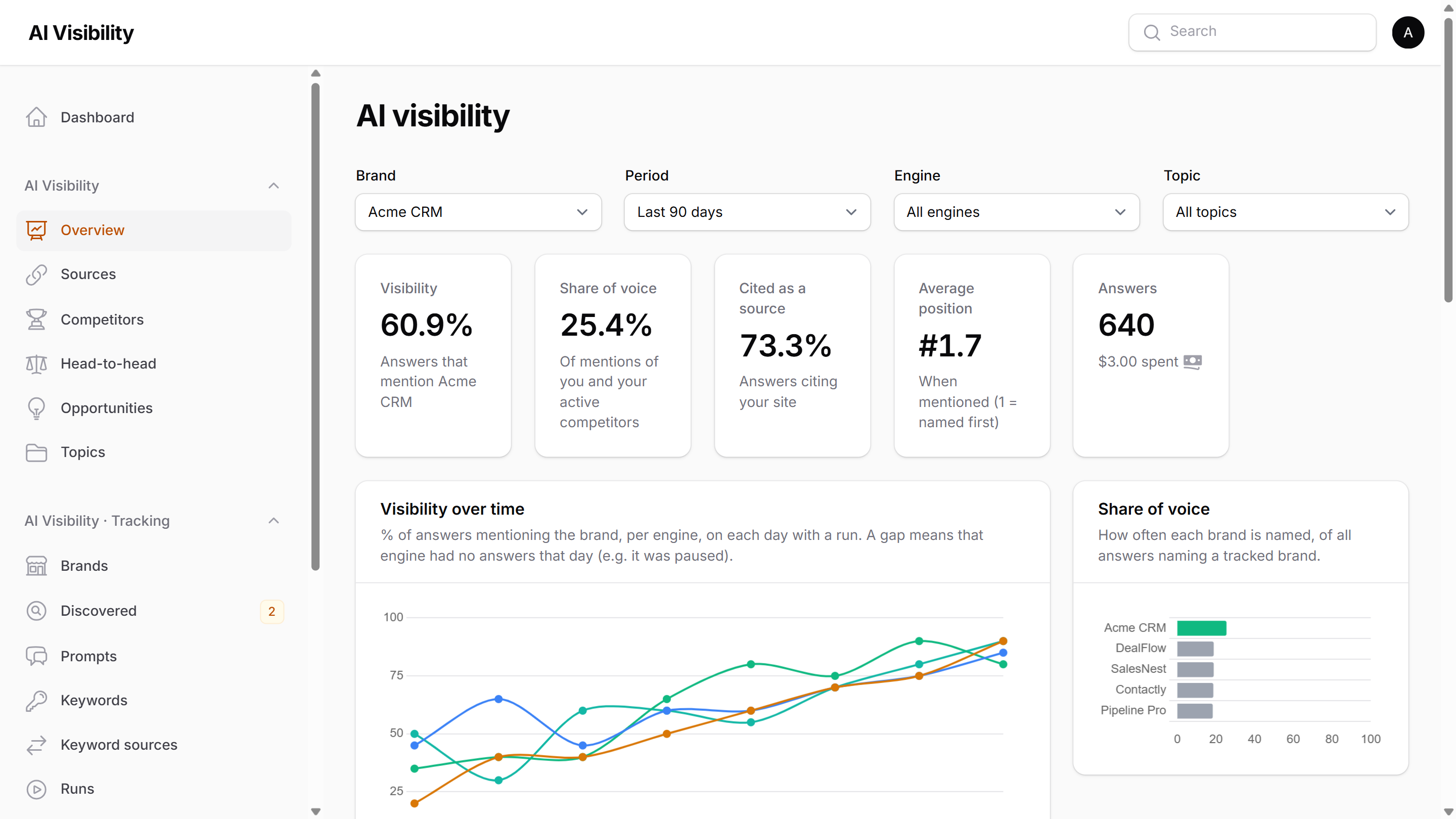
Overview (/{panel}/ai-visibility), filtered by brand, period (7 days to 12 months), engine and topic:
- Visibility: % of answers that mention the brand, with the change vs the previous period
- Share of voice: how often the brand is named, of all answers naming any tracked brand
- Cited as a source: % of answers citing the brand's site
- Average position: where the brand is named among tracked brands (1 = first)
- Visibility over time per engine, share of voice vs competitors, visibility by engine
- Top cited sources, and the prompts that gained, lost, or are least visible
Sources shows where answers get their information (your site, competitors, review sites, forums, media, social, marketplaces, wikis, government/education) and which of your pages are cited most. Add your own domains to the categories in config/ai-visibility.php.
Prompt history (open a prompt) shows each engine's answers over time and what changed: brand gained or lost, position moves, competitors appearing or disappearing, and new or dropped sources.
CSV export on Answers (every answer with mentions, sources and cost, matching the table's filters) and Prompts (30-day visibility per prompt).
Only successful answers count in reports. Answers skipped because an engine was paused are left out, and charts show those days as gaps rather than a drop to zero.
#Keywords and prompt generation
Prompts are only as good as the questions behind them, so generation is grounded in real search demand where possible.
Keyword sources (Keyword sources screen), all optional:
| Source | What it gives you | Notes |
|---|---|---|
| Manual / CSV | Keywords you paste or upload | Keywords screen |
| SerpAPI "People also ask" | Real question phrasings and related searches for your keywords | One SerpAPI search per seed keyword |
| Google Search Console | Your site's real queries, with clicks and impressions (90 days) | Free. Create a Google Cloud service account, enable the Search Console API, paste its JSON key, and add its email as a user of your property |
| DataForSEO | Keywords your site ranks for, with search volume | Pay as you go |
Each source can be tested and synced on demand, and syncs automatically (monthly by default). A failing source is marked (with the error), sends one alert, and retries the next day. Queries containing your brand name are flagged as branded and aren't used for discovery prompts.
Generate prompts (Prompts screen, a brand, the setup wizard, or selected keywords) writes realistic questions across the intents you choose (discovery, comparison, alternatives, problem solving, branded), for a persona and topic if you like. Weak ideas are filtered out first by rules (too short or long, not a question, names the brand, near-duplicate of an existing prompt), then by an optional AI review scoring realism and relevance 1–5. Good prompts are saved as Suggested for you to activate. Filtered ones are kept as Rejected with the reason. Each prompt remembers the keywords it came from.
Organise into topics (on a brand) proposes 3–12 topics for its prompts. You can rename or remove them before applying. The Topics report shows visibility per topic, weakest first.
When prompts are linked to keywords with search volume or impressions, the Overview adds search-weighted reach: visibility weighted by the demand behind each prompt, so winning a popular question counts more than winning a rare one.
#Answer analysis
After each run, answers are analysed in small batches (one AI helper call per ~5 answers). For every tracked brand an answer mentions, it records:
- Sentiment: positive, neutral or negative, with a score from -1 to 1
- Recommendation strength: top pick, recommended, listed, in passing, or cautioned against
- Descriptors: the words used to describe it ("affordable", "best for enterprises", "steep learning curve")
The same call also picks up other company names for competitor discovery, so no extra call is needed for that. Detection decides whether a brand is mentioned; the analysis only describes mentions detection found. If no helper engine is available, answers are marked for later and analysed on the next pass. Turn it off in Settings → Analysis & competitors.
#Competitor reports
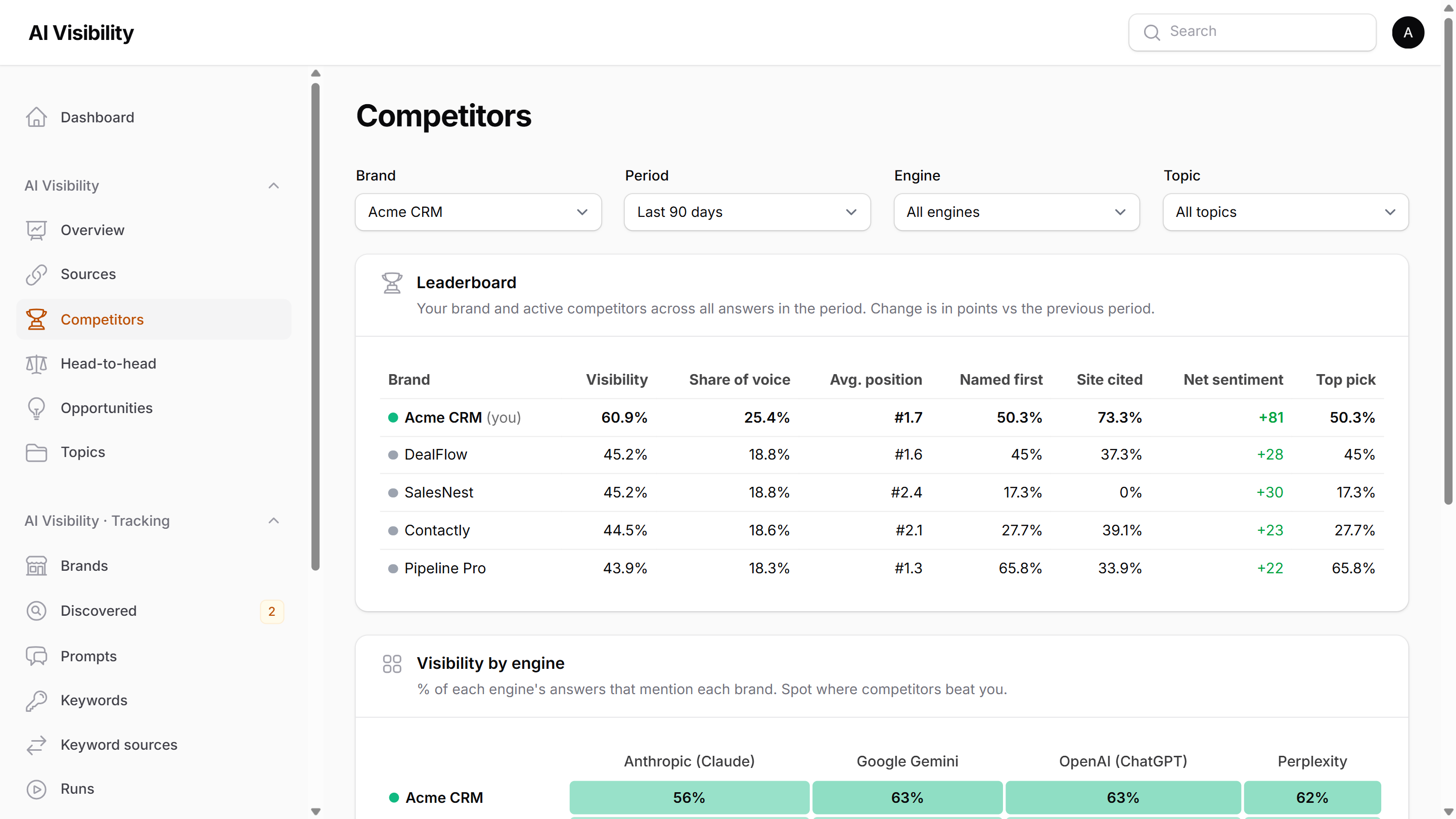
- Competitors: a leaderboard of your brand and competitors (visibility with change, share of voice, average position, how often each is named first, how often its site is cited, net sentiment, top-pick rate), a heatmap of visibility per engine, and how AI talks about you (sentiment, recommendation mix, descriptors).
- Head-to-head: your brand against one competitor. Visibility, how often each is named ahead, how often they're named together, the prompts each one wins, how AI describes each, and the sites citing them but not you (and the reverse).
- Opportunities: prompts where competitors are named and you aren't, ranked by how many competitors appear on how many engines, plus where to get featured: the sites cited in exactly those answers.
#Competitor intelligence
After each run, AI Visibility looks for companies the AI engines mention alongside your brand:
- Names: company and product names in the answers, even without a link (one AI helper call per ~8 answers; can be turned off).
- Sites: every cited domain that isn't yours or a tracked competitor. Search engines and link shorteners are ignored, and you can add your own exclusions. A name and its domain ("Globex" and globex.io) become one candidate.
- Score (0–100): how many answers, prompts and engines it appears in, how early it's named, and how recently.
- Classify: the top candidates (25 per brand by default) are labelled from evidence: their homepage and about page, and the sentences the answers used to describe them. The labels are direct competitor, indirect competitor, marketplace, review/comparison, media, forum, directory, related tool, supplier/partner, your own property, or unrelated, each with a confidence and a reason.
The Discovered screen lists them by score. Track turns a candidate into a competitor and updates past answers, so it shows up in share of voice straight away. You can also mark candidates as Not a competitor, Ignore forever, or Change label. Label corrections are shown to the classifier as examples next time, so it learns what you mean. Labels also categorise sources (a site labelled "review/comparison" counts as a review source in the Sources report).
The setup wizard can Suggest competitors for a new brand, and Settings → AI instructions lets you replace the instructions used for classification, name extraction and suggestions.
#Alerts
Always on (can't be switched off): an engine pauses or resumes, a keyword source fails, a brand hits its budget, the queue worker stops (checked every 10 minutes), or the scheduler stops (checked whenever someone opens an AI Visibility screen, since a stopped scheduler can't report itself).
Alert rules (Alert rules screen), per brand or for all brands:
| Rule | Fires when |
|---|---|
| Visibility drops | Visibility over the last N days falls by X points vs the N days before (optionally for one engine) |
| A competitor overtakes you | A competitor is mentioned in more answers than you |
| New direct competitor found | Discovery classifies a candidate as a direct competitor |
| A prompt stops mentioning you | You were in the last few answers to a prompt on an engine, then not the latest |
| Negative mentions increase | The share of negative mentions passes X% (needs at least 5 analysed mentions) |
| Spend reaches part of the budget | This month's spend passes X% of the budget (once a month) |
| A run fails | A run fails, or X% of its answers fail or are skipped |
Rules are checked after every run and daily. Each rule fires once per episode (the same finding is never repeated) and respects its cooldown. Each rule chooses its channels (panel, email, Slack); recipients are set in Settings. Every alert, rule-based or always-on, is kept in the Alerts inbox, with an unread count in the navigation.
#Scheduled reports
Scheduled reports sends a weekly (Mondays, last 7 days) or monthly (1st, last 30 days) email per brand to any recipients, with the sections you choose: summary with period-over-period change, competitor leaderboard, opportunities and where to get featured, prompt movers, top sources, and how AI talks about you. Install dompdf/dompdf to attach a PDF copy. Reports can be previewed and sent on demand, and failures are recorded, alerted, and retried.
#One key is enough
Every feature works with a single API key. Helper features (analysis, competitor classification, prompt generation) use the first engine with a working key, in the order OpenAI → Anthropic → Gemini → Grok → Perplexity, and switch automatically if that engine pauses. You can pin a specific engine and model in Settings → AI helpers.
Keys are found in this order:
- Saved in the panel (Settings → Engines & API keys), stored encrypted and never sent back to the browser. Remove saved key deletes it (the engine then falls back to the next source below). Both Google engines use one shared SerpAPI key field. The Health page links each engine to its key, and Run setup again in Settings reopens the wizard.
- AI Monitor, if installed.
- Environment variables:
AI_VISIBILITY_OPENAI_KEY,AI_VISIBILITY_ANTHROPIC_KEY,AI_VISIBILITY_GEMINI_KEY,AI_VISIBILITY_GROK_KEY,AI_VISIBILITY_PERPLEXITY_KEY,AI_VISIBILITY_SERPAPI_KEY(both Google engines).
#When something goes wrong
Engines pause themselves instead of failing over and over:
| Problem | What happens |
|---|---|
| Key missing or removed | Engine pauses; resumes as soon as a key is added |
| Key rejected | Engine pauses until you fix the key and click Test & resume |
| Model unavailable | Engine pauses; pick another model |
| Rate limited | Engine slows down (half the requests per minute); pauses after repeated limits and resumes automatically |
| Provider outage | Requests retry with back-off; after 5 failures in a row the engine pauses for 15 minutes, then is re-tested (pauses grow up to 4 hours) |
| Out of credits | Engine pauses and you're alerted immediately; re-tested every 6 hours and resumed automatically once credits are added |
| Monthly budget reached | Engines (or the brand, for a brand budget) pause; resume next month or when the budget is raised |
A paused engine is skipped instantly: its remaining answers are marked skipped with the reason, no requests are sent, and nothing is retried in a loop. Once it's fixed, Retry skipped on the run collects the missing answers.
Each pause sends one alert per incident (not one per failed request), in the panel, by email and to Slack, with the exact fix. These alerts are always on. The Health page shows every engine's state, the queue worker and the scheduler, and php artisan ai-visibility:health exits with an error code for your monitoring. See Troubleshooting.
Settings → Safety & data → Pause everything stops all AI Visibility work at once.
#Limits
Set in Settings: max brands, competitors per brand, active prompts per brand, keywords per brand, runs per brand per day, and a monthly budget. Competitors, active prompts, runs per day and the monthly budget can also be overridden per brand (the brand's Settings tab). Limits are enforced everywhere (forms, imports, bulk actions and code), not just in the UI. Prompts imported over the active limit are saved as paused. See Configuration.
#Multi-tenancy
When tenant_support is on (the default), all data, settings, keys and engine states are scoped to the current tenant, resolved from:
- A custom resolver:
Tenancy::resolveUsing(fn () => auth()->user()?->team_id); - The
tenant()helper (e.g. stancl/tenancy). - Filament's current panel tenant.
Keys saved in the panel are per tenant; keys from AI Monitor or environment variables are shared by every tenant without its own key. See Permissions and tenancy.
#Permissions
Everyone who can use the panel can use AI Visibility by default. Two options narrow that down:
AiVisibilityPlugin::make()
    // Who can open AI Visibility at all (every screen).
    ->authorizeUsing(fn ($user) => $user->can('view-ai-visibility'))
    // Who can change settings, API keys, budgets and alerts (the full list is below).
    ->canManageSettings(fn ($user) => $user->is_admin);   // or true / false
canManageSettings() gates exactly these:
- Settings and the Setup wizard (whole pages).
- Alert rules and Scheduled reports (whole screens).
- Keyword sources: connecting, editing, testing, syncing and removing a source (they hold API keys). Others can still see the list.
- Brands → Settings tab: per-brand engines, samples, limits and monthly budget. The tab is hidden for others, and a save by them never changes these values.
- Health: pausing, resuming and testing engines. Others see the page without its buttons.
Everything else (reports, brands, prompts, keywords, discovered competitors, runs, answers, the alerts inbox) follows authorizeUsing() only. Screens a user can't open are hidden from the navigation and return 403. Both callbacks receive the logged-in user and are never called for guests (a guest is simply not authorized). Resource policies, if you have them, still apply on top.
Alert recipients: the "Panel users who receive alerts" picker is searchable and only offers users the current user should see. With Filament tenancy it lists the current tenant's users() or members(); without such a relationship, only yourself. Without tenancy it starts with yourself, and you search for others. To choose the users yourself:
AiVisibilityPlugin::make()
    ->alertRecipientsQuery(fn ($query, $tenant) => $query->where('team_id', $tenant?->getKey()));
#Plugin options
AiVisibilityPlugin::make()
    ->navigationGroups(false)        // one group instead of "AI Visibility", "· Tracking" and "· Admin"
    ->navigationGroup('Marketing')   // one group with this name (null for no group)
    ->navigationSort(10)
    ->withoutSetupWizard()           // configure everything in code instead
    ->brands()->prompts()->keywords()->settingsPage()->healthPage()  // pass false to hide
    ->engine(MyEngine::class)        // add an engine (implements Engines\Contracts\Engine)
    ->keywordSource(MySource::class) // add a keyword source (implements Keywords\Contracts\KeywordSource)
    ->withoutEngine('grok');
->engine(), ->withoutEngine() and ->keywordSource() only take effect in panel requests. Queue workers and scheduled commands need the engine or source registered in the container too; see Extending. Every option is described in Plugin options.
By default the screens are split into three navigation groups (if you upgrade from a version with a single group, your navigation changes; add ->navigationGroups(false) to keep one group): AI Visibility (Overview and reports), AI Visibility · Tracking (Brands, Prompts, Keywords, Keyword sources, Discovered, Runs, Answers) and AI Visibility · Admin (Setup, Alerts, Alert rules, Scheduled reports, Settings, Health). ->navigationGroup('Marketing') puts everything in one group; add ->navigationGroups() after it to keep the split with that name ("Marketing", "Marketing · Tracking", "Marketing · Admin").
#Artisan commands
| Command | Purpose |
|---|---|
ai-visibility:install |
Publish config and migrations, run migrations, print next steps |
ai-visibility:health {--tenant=} |
Check the queue, scheduler and engines (non-zero exit when something needs attention); every tenant unless one is given |
ai-visibility:engines {--test} {--resume=openai} {--tenant=} |
Show engine states, test keys, or resume an engine |
ai-visibility:run {--due} {--brand=ID} |
Start due scheduled runs (runs every 15 minutes from the scheduler), or one brand now |
ai-visibility:probe |
Re-test paused engines and resume those that work (runs every 5 minutes) |
ai-visibility:discover {--brand=ID} {--queue} |
Find, score and classify competitors (runs after every run, and daily) |
ai-visibility:sync-keywords {--brand=ID} {--all} |
Pull keywords from connected sources (due ones run daily) |
ai-visibility:alerts {--watch} |
Check alert rules (daily) or just the queue watchdog (every 10 minutes) |
ai-visibility:send-reports |
Send scheduled reports that are due (hourly) |
ai-visibility:poll-batches |
Store answers from finished economy-mode batches (every 5 minutes) |
ai-visibility:sweep-runs |
Close runs whose remaining answers were lost, e.g. after a queue was flushed (hourly) |
ai-visibility:redetect {--brand=ID} |
Check stored answers again with the current brand and competitor names. Runs by itself when a brand's name, aliases or domains, or its competitors, change |
ai-visibility:prune {--dry-run} |
Remove the text of answers older than Settings → "Keep full answer text for"; metrics are kept (daily) |
#Costs
Every call is recorded with its tokens, searches and cost (details). Prices come from AI Monitor when it's installed (and every call is also logged there), otherwise from pricing in config/ai-visibility.php. The bundled prices are estimates, so check them against each provider's pricing page. Economy-mode answers get pricing.batch_discount (50%) off their token cost; search fees are not discounted. SerpAPI searches are priced at pricing.search_fee.google_ai_overview / google_ai_mode, which depends on your SerpAPI plan.
#Testing
composer test
CI runs the suite on Filament 4 and 5.
#License
MIT. See LICENSE.
The author
Israr Minhas is a full-stack web developer with experience in Laravel, Filament, Livewire, Vue, and modern PHP development. He has worked on SaaS platforms, dashboards, and multi-tenant systems, focusing on building reliable and easy-to-use web applications. He enjoys learning new technologies and creating practical solutions that simplify work for users and teams.
From the same author
Featured Plugins
A selection of plugins curated by the Filament team
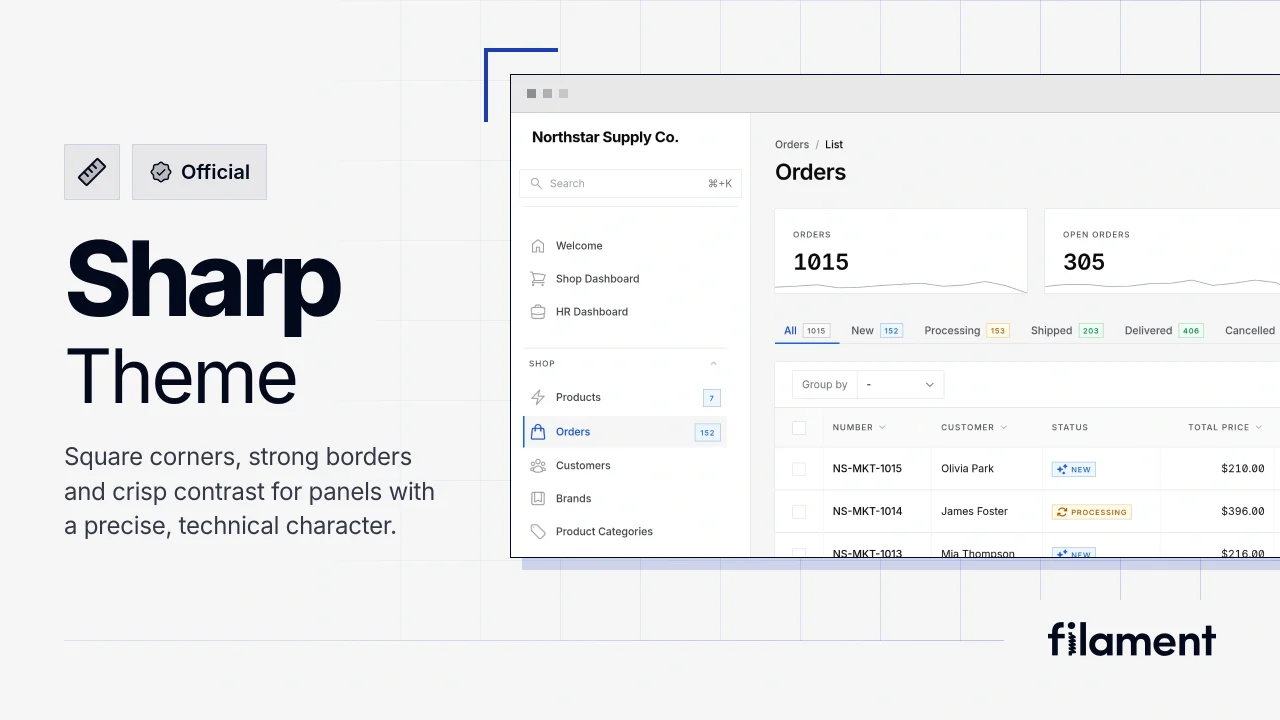
Sharp Theme
A theme that gives panels a precise, technical look with square corners, strong borders, and clear contrast.
 Filament
Custom Fields
Eliminate custom field migrations forever. Let your users create and manage form fields directly in Filament admin panels with 20+ built-in field types, validation, and zero database changes.
 Relaticle
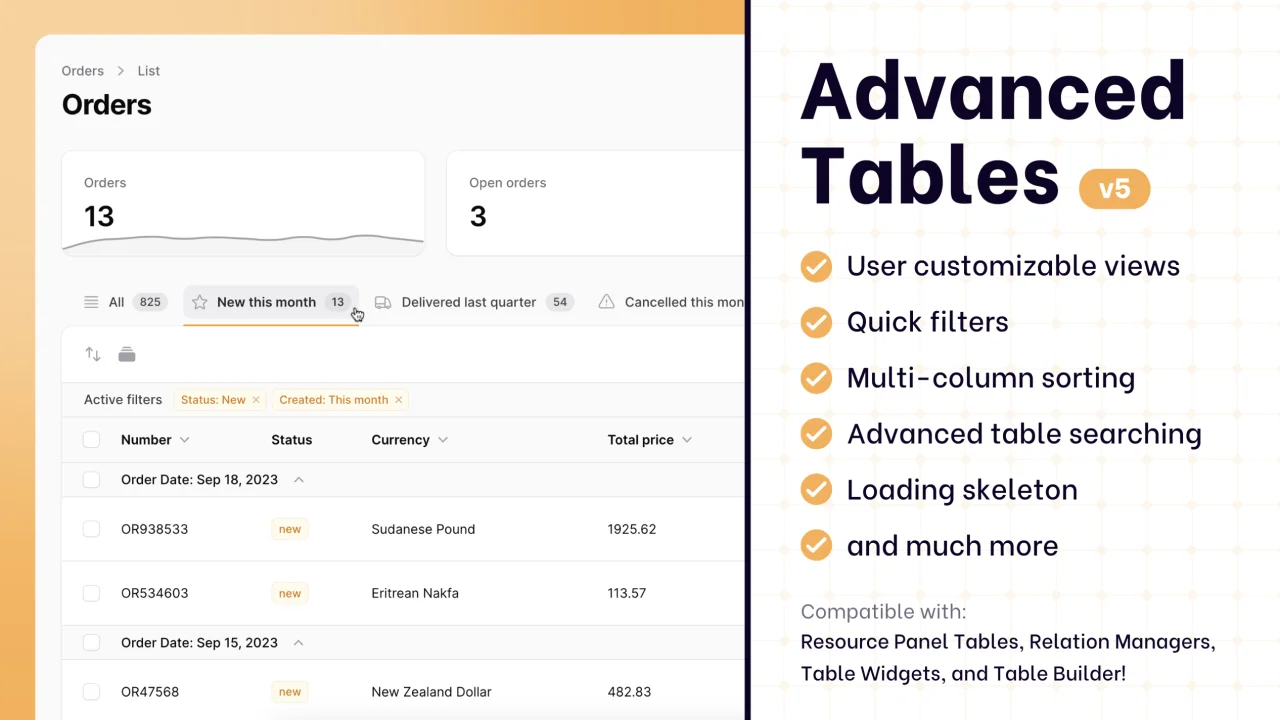
Advanced Tables (formerly Filter Sets)
Supercharge your tables with powerful features like user-customizable views, quick filters, multi-column sorting, advanced table searching, convenient view management, and more. Compatible with Resource Panel Tables, Relation Managers, Table Widgets, and Table Builder!
 Kenneth Sese